System Requirements for enabling RemotePC™ WOL
To successfully wake up a computer via Wake-on-LAN, ensure the following settings and hardware requirements are met:
- Network card that supports Wake-on-LAN.
- Active internet connection.
- Connected to the internet via a LAN cable.
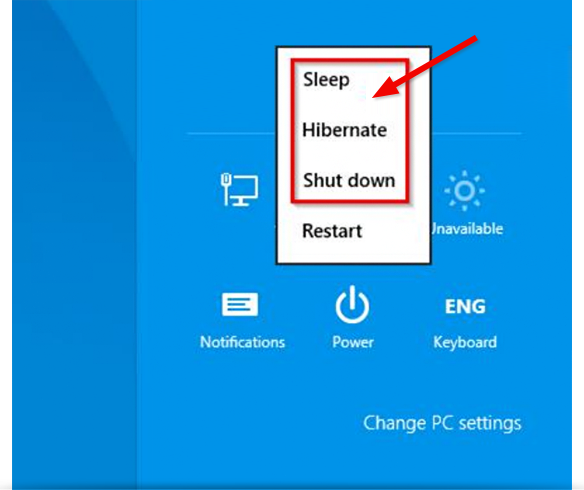
- The computer should be in one of the following power states:
- Sleep
Start > Sleep - Hibernate
Start > Hibernate -
Shut down (Soft off)
Start > Shut down
Note: Not supported under Mac OS X
After ensuring that your computer meets the above requirements, you can proceed with configuring your Windows machines for WOL.
Set up Windows
To wake up a computer via WOL, you should enable WOL in the BIOS settings and configure the network card.
To enable WOL in the BIOS settings:
- Switch on the computer and press ESC, F1, F2, F8 or F10 during the initial start-up. Depending on the BIOS manufacturer, a menu will appear.
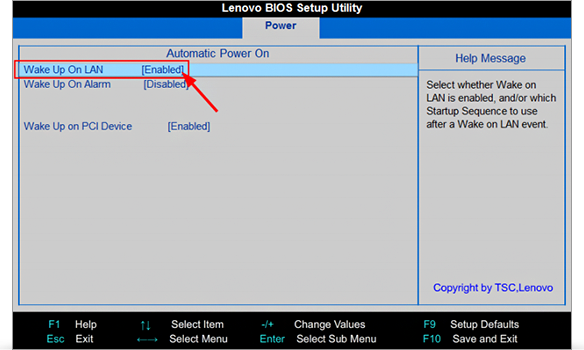
- Go to the 'Power' tab and enable 'Wake Up On LAN'.
- Save and exit the BIOS setup.
Note: If there is no option to enable Wake-on-LAN in the BIOS setup, refer to the motherboard manual to ensure your computer supports Wake-on-LAN.
Configure Network Card
The network card must be configured so that power is supplied at all times.
To configure the network card:
- Switch on the computer and go to 'Control Panel' -> 'System and Security'.
- Click 'Device Manager' displayed on the left navigation bar.
- Right-click on 'Network adapters' and click 'Properties'.
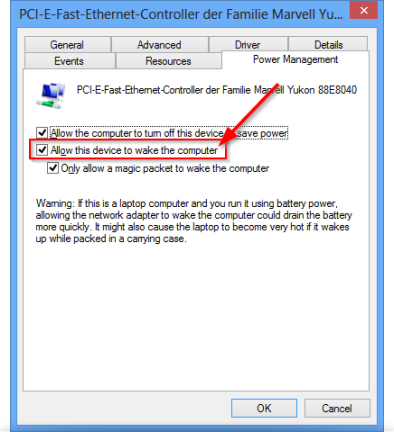
- Go to the 'Power Management' tab and enable the 'Allow this device to wake the computer' option.
Note: The configuration steps may vary depending on the network card and operating system.
Configure Windows 8
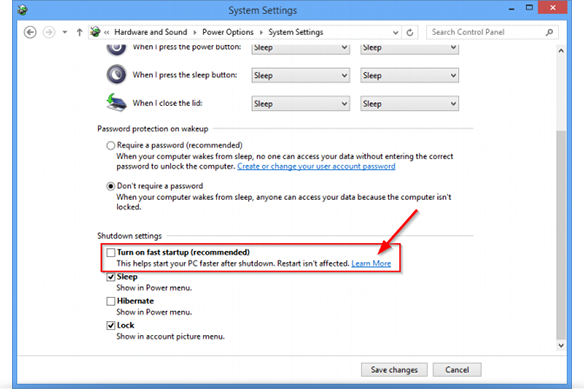
In Windows 8, the standard shutdown procedure puts the computer into a hybrid shutdown state. Windows 8 does not support Wake-on-LAN in this state, so we recommend that you disable fast start-up. Once fast start-up has been disabled, the computer will always be put into hibernate mode during shutdown.
To disable fast start-up:
- Switch on the computer and go to 'Control Panel' -> 'Power Options'.
- Click on the 'Change what power buttons do' option on the left menu bar.
- Disable the 'Turn on fast startup (recommended)' option displayed in the 'Shutdown settings' section.