Deploy RemotePC host via Microsoft Intune
Deploy the RemotePC host on multiple Android devices for remote access by following the detailed steps below.
Prerequisites
- RemotePC host for Android (Version: 1.2.3)
- A work profile on the Intune Company Portal app
- Log in to your RemotePC account via a web browser and copy the Configuration ID
Sync the app to the Intune admin centre
- Sign in to the Microsoft Intune admin centre.
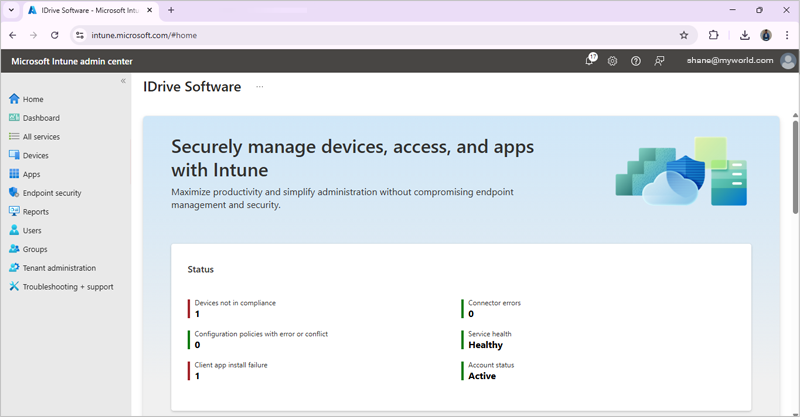
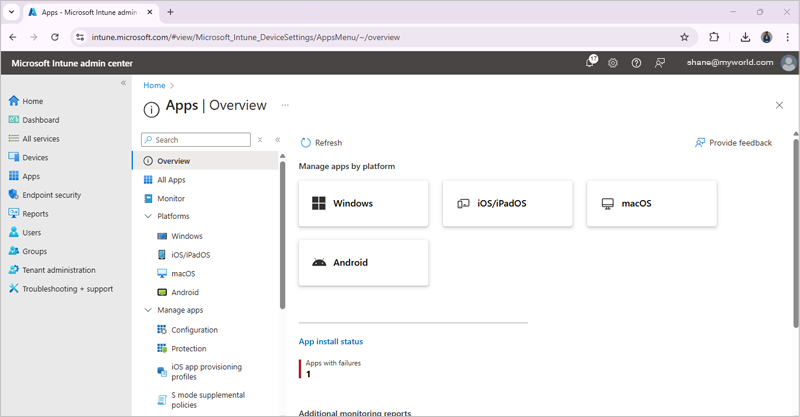
- Navigate to 'Apps' > 'Android'.
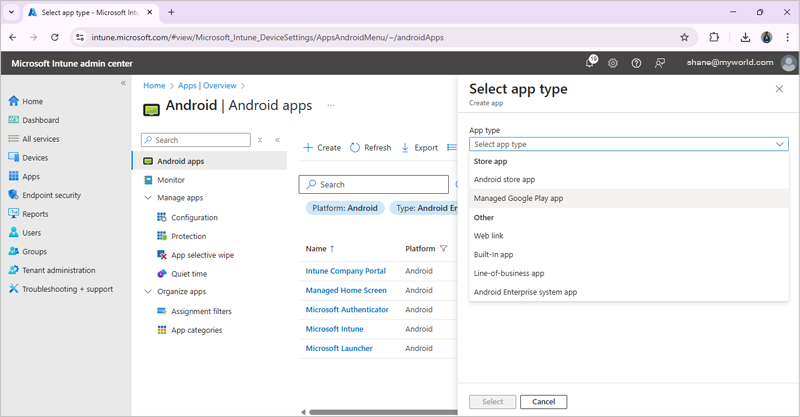
- Tap 'Create'. Select 'Managed Google Play app' in the 'App type' drop-down. Tap the 'Select' button.
- Sign in to your Google account (if you are not already signed in) to get the RemotePC Host app from the Google Play Store.
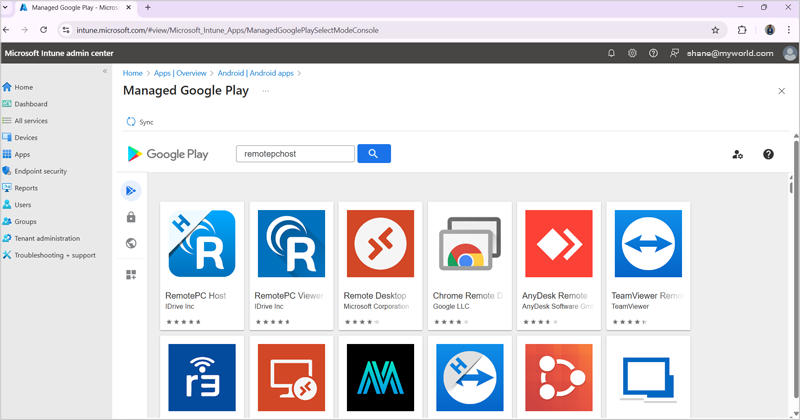
- Search for the RemotePC Host app and tap 'Select' to sync the app to your Intune admin centre.
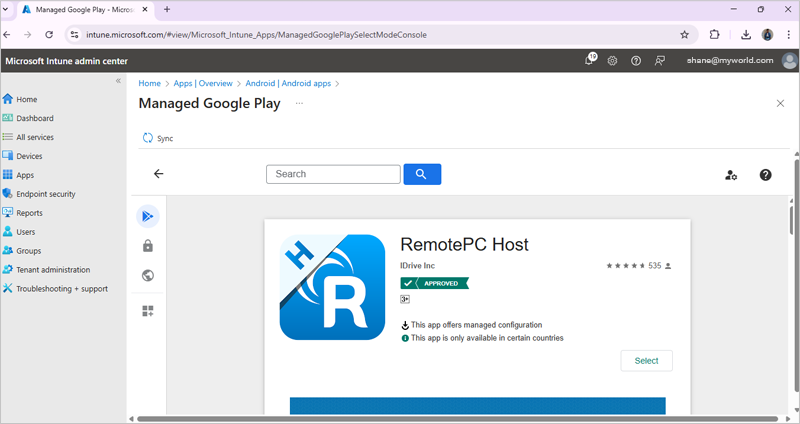
Configure a policy for the app
- Select configuration to set a policy for the RemotePC Android Host app.
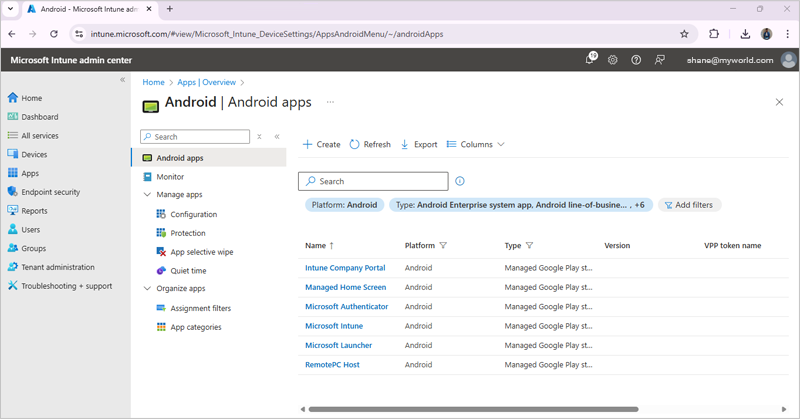
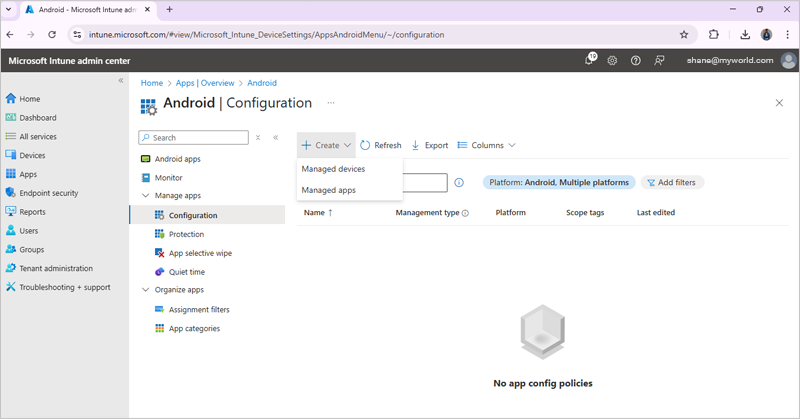
- Select the 'Managed devices' option from the 'Create' drop-down.
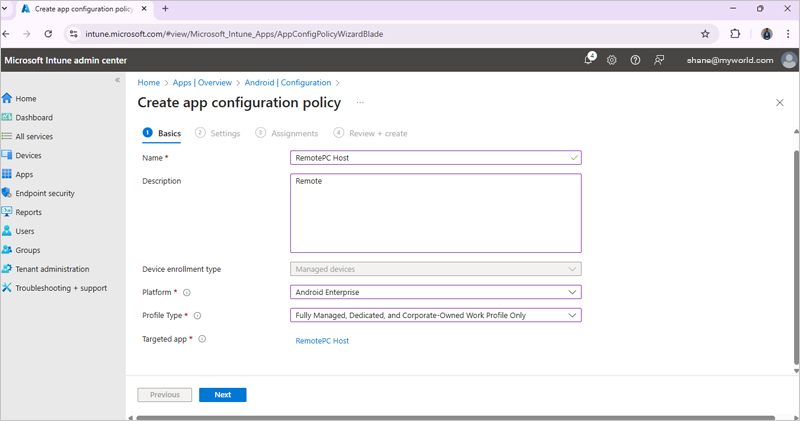
- On the 'Create app configuration policy' screen, enter a name and description for the app. Set the following parameters and click 'Next'.
- Select 'Android Enterprise' as the platform.
- Select 'Fully managed' as the profile type if the device is company-owned or 'Personally owned' if it is a personal device.
- Click 'Add' under 'Permissions' and select the permissions you wish to configure for the app. Then change 'Permission state' to 'Auto grant' for each of the added permissions.
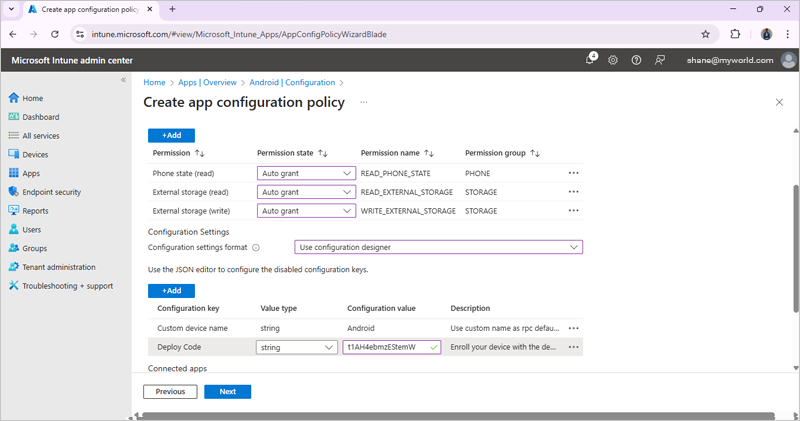
- Click 'Add' under 'Configuration Settings' and then:
- Enter a device name.
- Set 'Value type' to 'string'.
- Under 'Configuration value', enter the deployment code from your RemotePC account. Log in to your RemotePC Enterprise account, click 'Deploy Package' and copy the Configuration ID.
Note: If the Configuration ID is modified, you will need to sync it again from the Intune admin centre.
- Add a description.
Key Name Type Comment MDM_DEPLOY_CODE Deploy Code String Input the Configuration ID generated
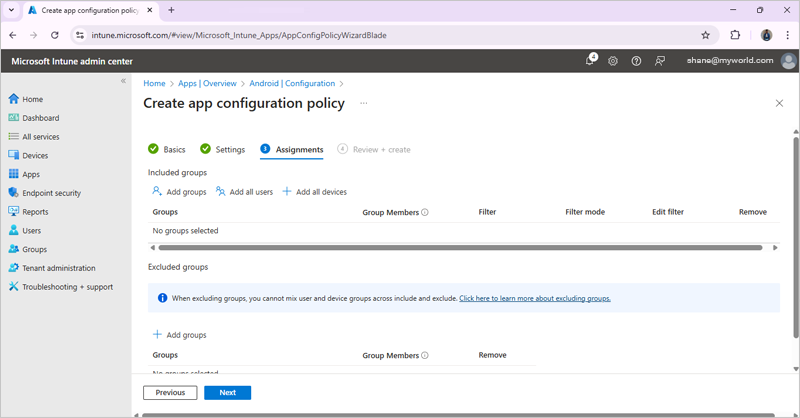
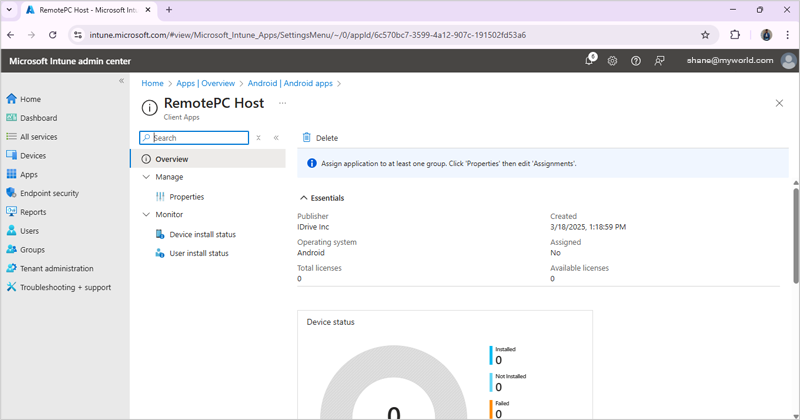
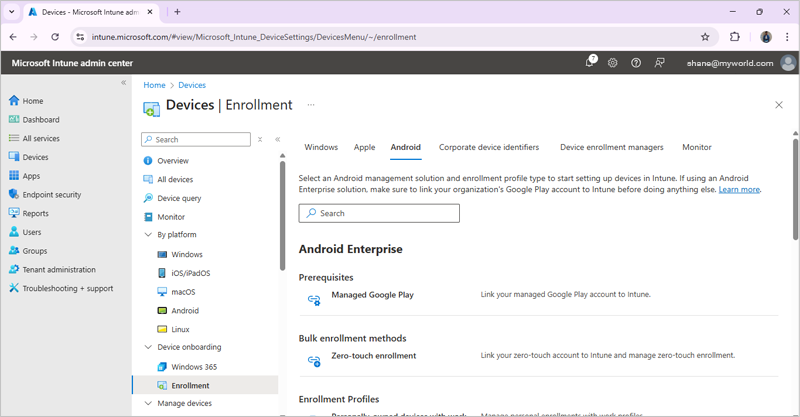
Alternatively, you can log in to the Intune Company Portal app with the same work profile on the target Android device and install the RemotePC Host app on it.