Deploy RemotePC via JumpCloud
Use JumpCloud to remotely deploy the RemotePC application to multiple Mac devices or groups.
Prerequisites:
- Download the RemotePC mass deployment package.
- Log in and copy the Configuration ID applicable to your account.
Enable Accessibility, Screen Recording and Allow in the Background Using a JumpCloud Policy
-
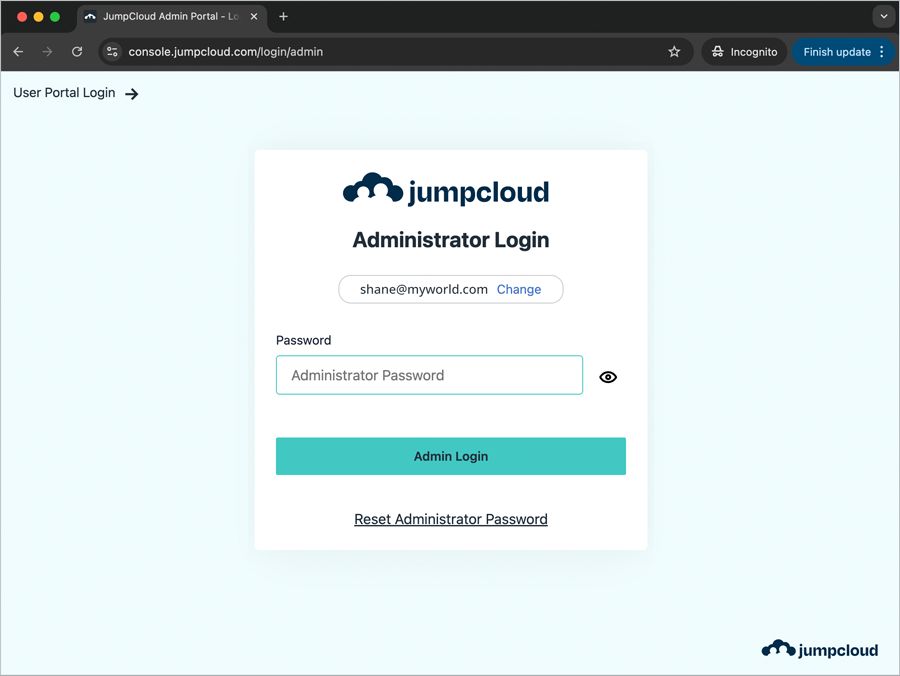
Navigate to the JumpCloud Admin Portal. Enter your email address and click 'Continue'. Enter your password and click 'Admin Login'.
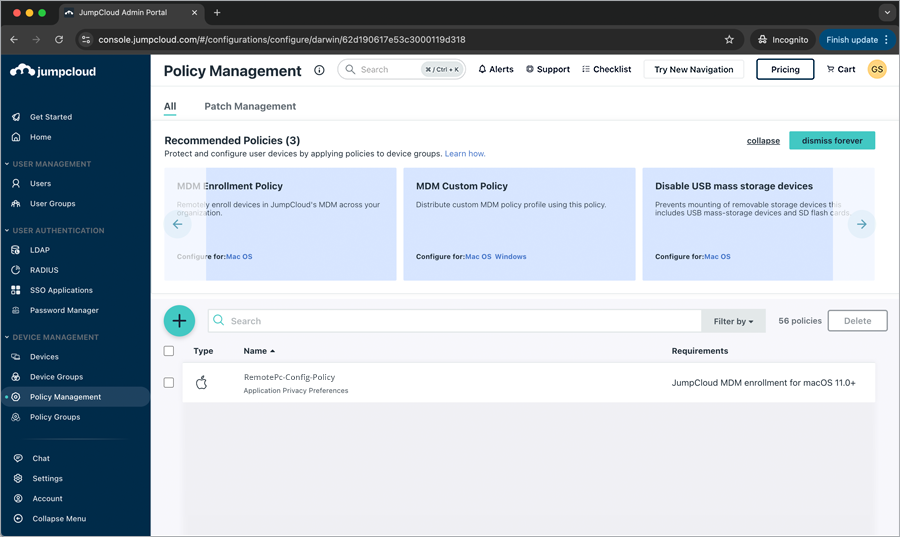
- Navigate to 'DEVICE MANAGEMENT' > 'Policy Management'.
-
Click
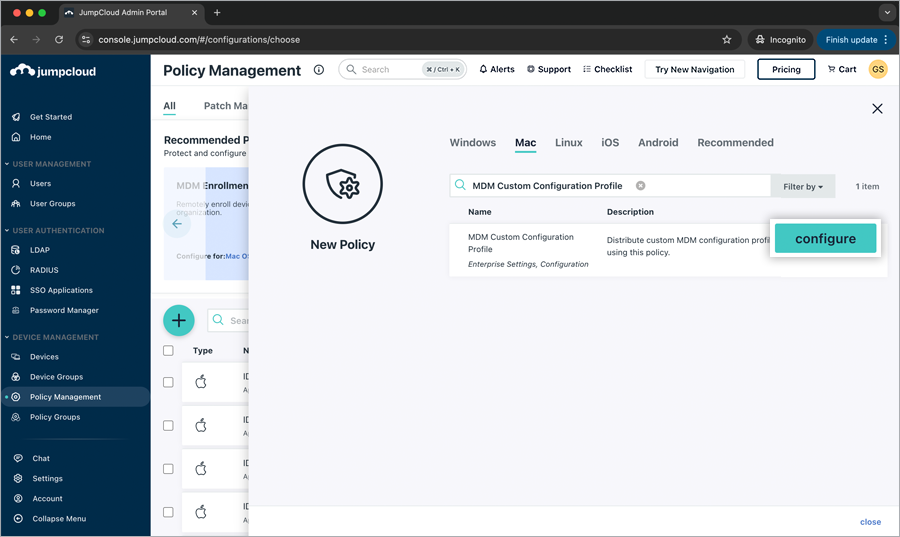
 . The 'New Policy' pop-up appears. Click the 'Mac' tab.
-
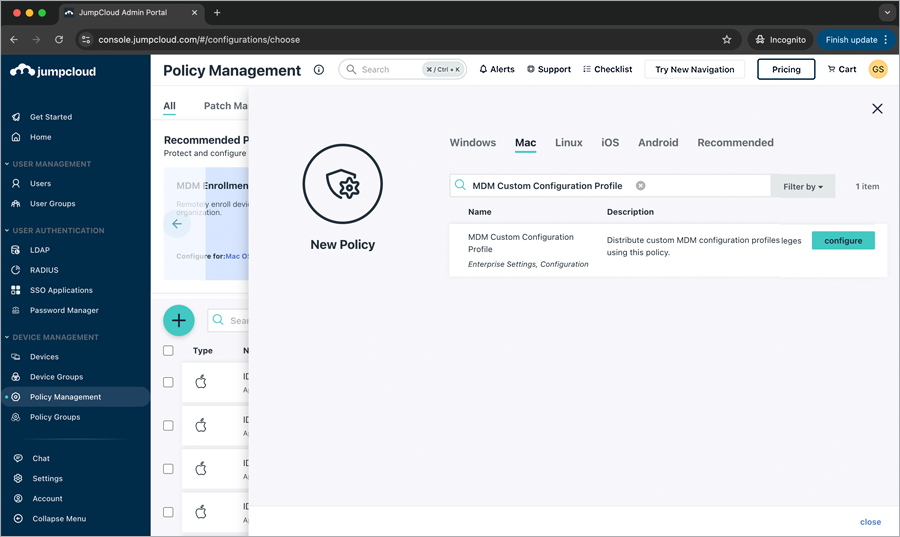
Scroll down or use the search field to locate 'MDM Custom Configuration Profile' and click 'configure'.
-
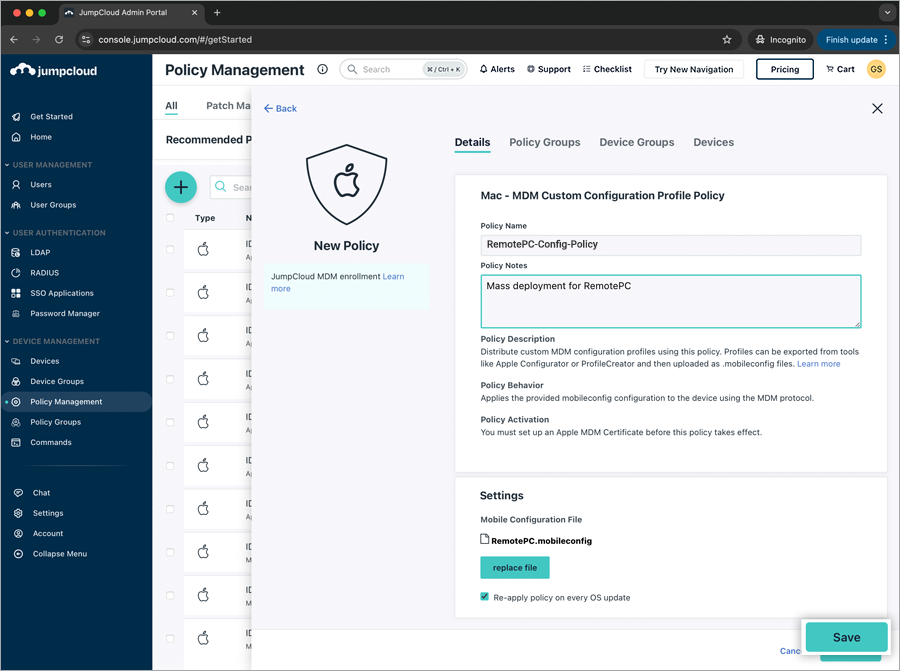
In the 'New Policy' pop-up, under the 'Details' tab, enter the following:
- Policy Name: RemotePC-Config-Policy
- Policy Notes: Mass deployment for RemotePC
- Under the 'Settings' section, click 'upload file'.
- Download the RemotePC.mobileconfig file and click 'Upload'.
- The configuration file has been successfully uploaded. Click 'Save'.
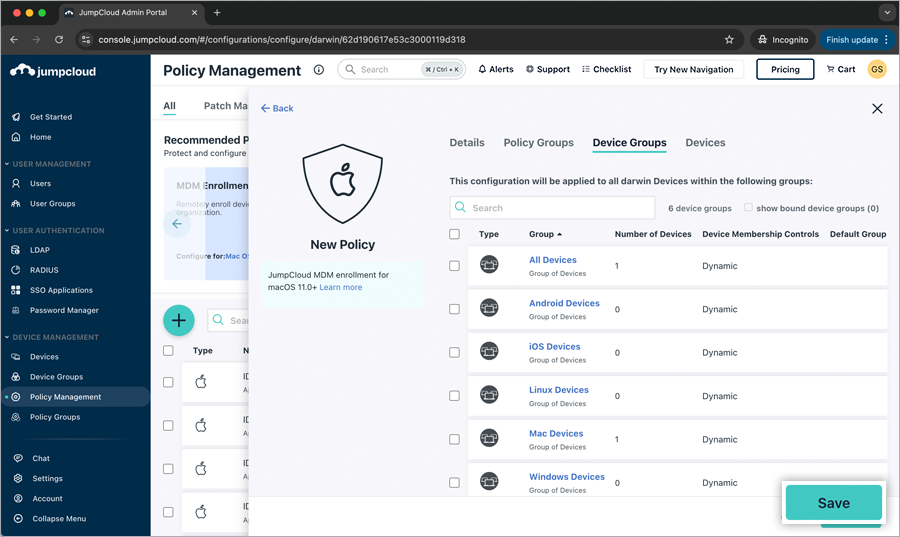
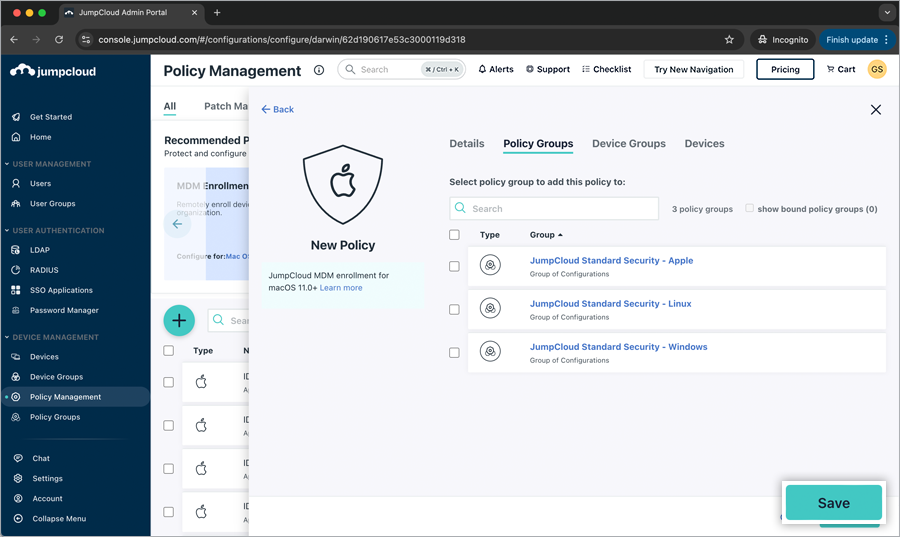
- To apply the configuration policy to all devices within the available groups, click the 'Device Groups' tab and select the corresponding device group checkboxes.
Alternatively, to apply the configuration policy to selected devices, click the 'Devices' tab and select the corresponding device checkboxes.
 You can apply the policy to any existing policy groups by clicking the 'Policy Groups' tab and selecting the corresponding policy group checkboxes. Click 'Save'.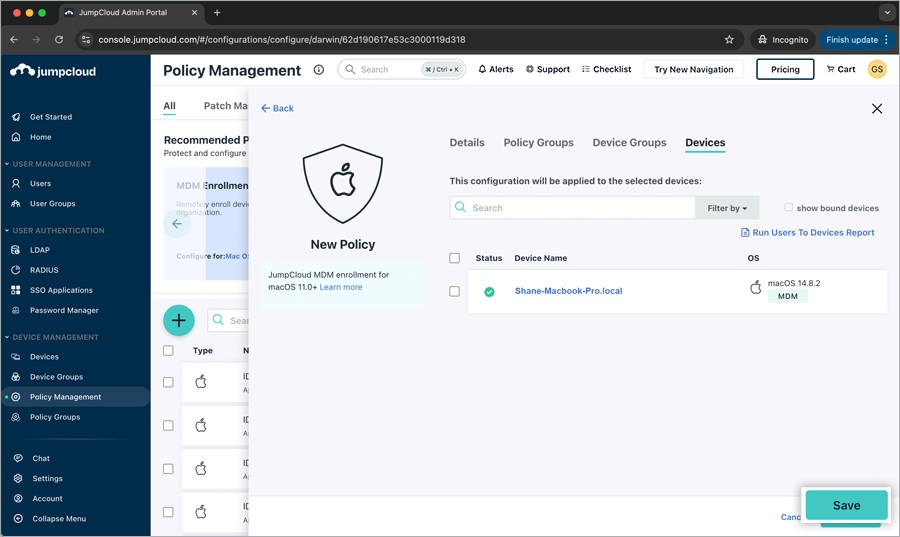
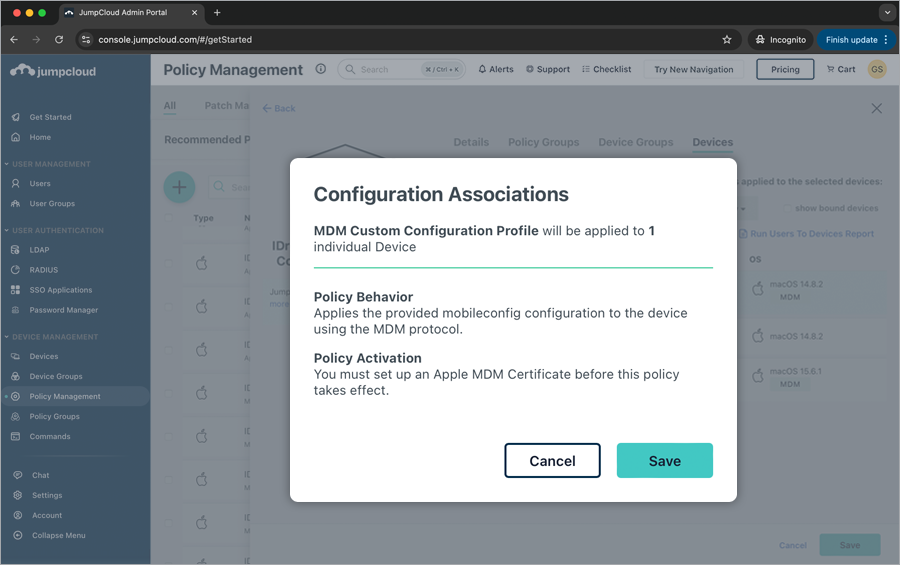
- In the 'Configuration Associations' pop-up, click 'Save'. The new configuration policy has been saved successfully.
Note: The device will automatically allow most permissions added in the MDM Custom Configuration Profile. While the ScreenCapture permission cannot be explicitly granted, the device will be configured to allow any user account to enable it. For information on screen recording permissions, refer to the Remote Access via Desktop FAQ.
Register Computers Using Custom Parameters
- Open the 'RemotePC Preinstall.sh' file you previously downloaded.
- Edit the script, add values for the required parameters listed in the table below and save the file. Use the image as a reference.
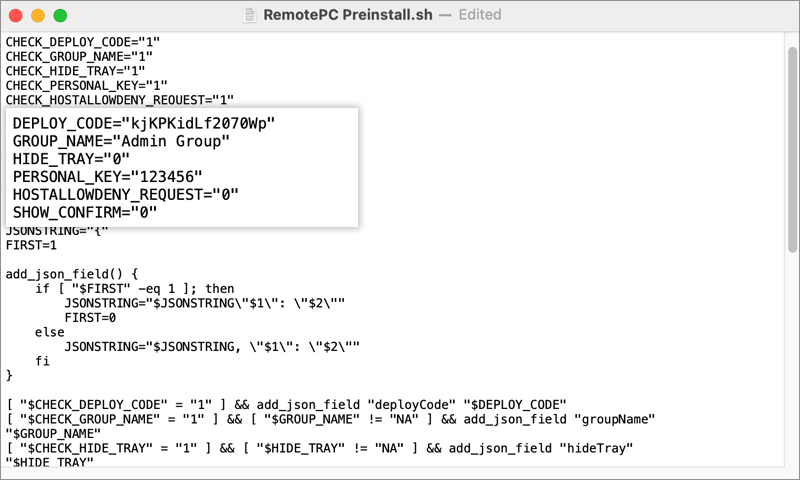
- Use the parameters below alongside other deployment parameters to register computers with a specific group.
| Parameters | Description |
|---|---|
| DEPLOY_CODE | This is a mandatory parameter, and you can find it under Deploy Package > Group deployment > Configuration ID in your RemotePC account |
| PERSONAL_KEY | Set a 'Personal Key' for the remote computer |
| GROUP_NAME | Name of the group to which the computer will be assigned * |
| HIDE_TRAY | |
| 1 | Enabling this option will prevent users from accessing the tray options on their remote computers |
| 0 | Show the tray and allow users to access the tray options |
| HOSTALLOWDENY_REQUEST | |
| 0 | Connection request permission is disabled |
| 1 | Automatically decline the connection on the login screen after the request expires |
| 2 | Automatically allow the connection on the login screen after the request expires |
| 3 | Allow the connection after the request expires |
| SHOW_CONFIRM | |
| 0 | Do not display the consent window; configure the host automatically |
| 1 (or any value) | Display the consent window; Confirm – the machine comes online; Reject – the machine remains offline |
Deploy RemotePC via JumpCloud
- Navigate to 'DEVICE MANAGEMENT' > 'Commands'.
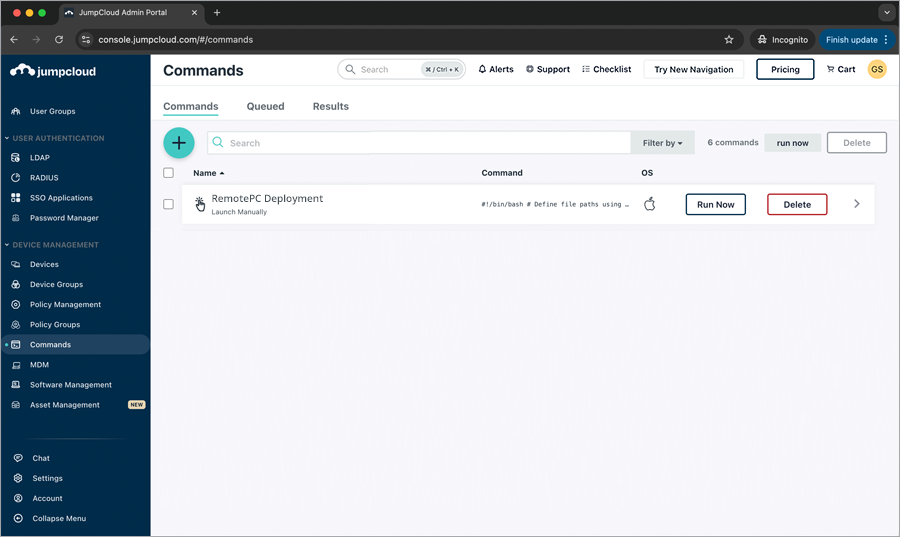
- Click the > 'Command'.
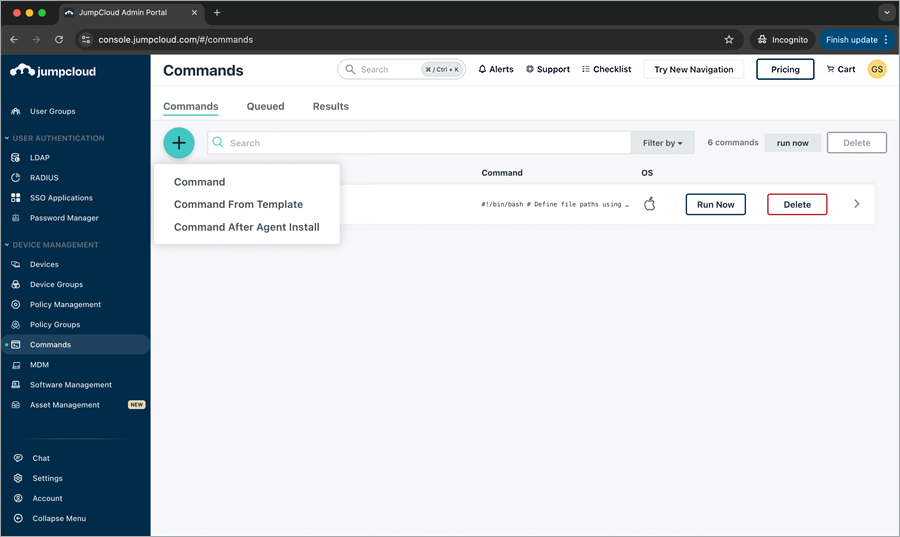
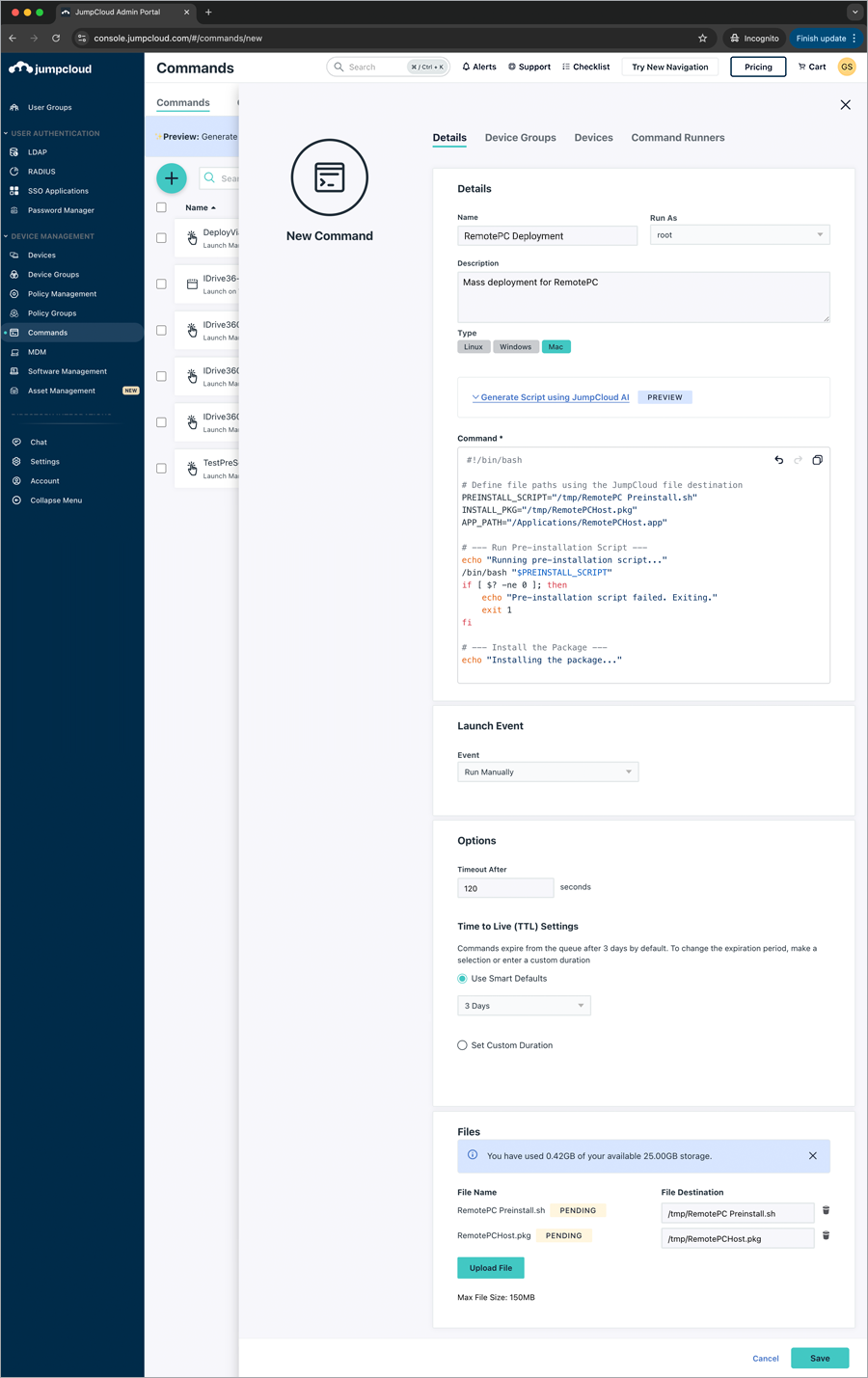
- The 'New Command' pop-up appears. Click the 'Details' tab. Enter the following details:
- Enter the Name (e.g., RemotePC Deployment).
- Click the 'Run As' drop-down list and select 'root'.
- Enter a 'Description' (e.g., Mass deployment for RemotePC (Optional)).
- Select 'Mac' under 'Type'.
- Enter the following command.
#!/bin/bash # Define file paths using the JumpCloud file destination PREINSTALL_SCRIPT="/tmp/RemotePC Preinstall.sh" INSTALL_PKG="/tmp/RemotePCHost.pkg" APP_PATH="/Applications/RemotePCHost.app" # --- Run Pre-installation Script — echo "Running pre-installation script..." /bin/bash "$PREINSTALL_SCRIPT" if [ $? -ne 0 ]; then echo "Pre-installation script failed. Exiting." exit 1 fi # --- Install the Package — echo "Installing the package..." installer -pkg "$INSTALL_PKG" -target / if [ $? -ne 0 ]; then echo "Package installation failed." exit 1 fi # --- (Optional) Clean up the files from the /tmp directory — rm "$PREINSTALL_SCRIPT" "$INSTALL_PKG" echo "Installation complete." # --- Launch the installed RemotePC Application — loggedInUser=$(stat -f "%Su" /dev/console) if [[ "$loggedInUser" != "root" && -d "$APP_PATH" ]]; then echo "Launching app for user: $loggedInUser" sudo -u "$loggedInUser" open "$APP_PATH" else echo "No logged-in user. Skipping app launch." fi - Schedule the launch event frequency as needed by selecting the event from the 'Event' drop-down list. You can set the timeout duration to your preference or use a custom value.
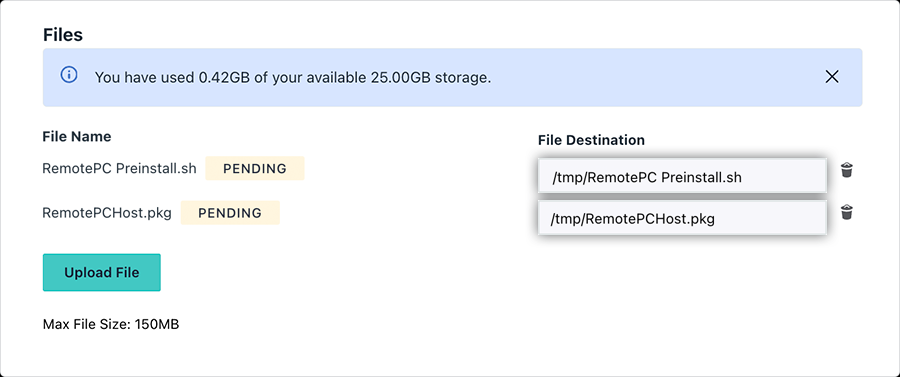
- Click 'Upload File' to select the downloaded and edited 'RemotePC Preinstall.sh' script file and click 'OK'.
- Click 'Upload File' to select the downloaded 'RemotePCHost.pkg' file on your computer and click 'OK'.
- Update the PREINSTALL_SCRIPT and INSTALL_PKG variables in the command with the 'File Destination' paths of the script and the package, respectively.
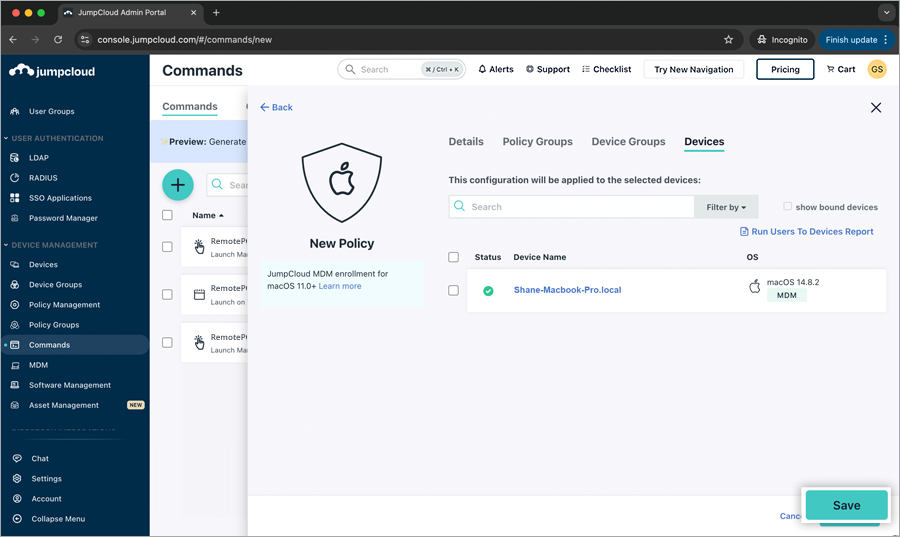
- To apply the command to all devices within the available groups, click the 'Device Groups' tab and select the corresponding device group checkboxes.
Alternatively, to apply the command to selected devices, click the 'Devices' tab and select the corresponding device checkboxes. Click 'Save'.
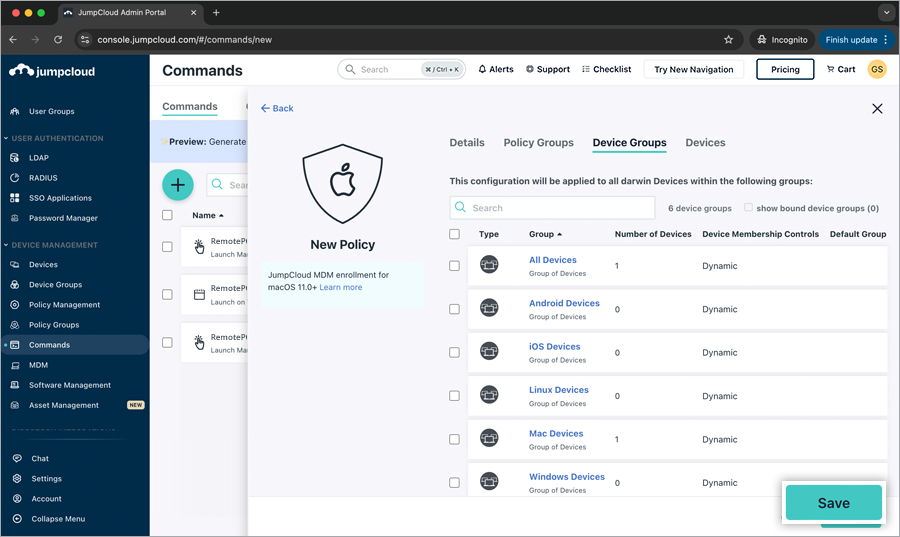
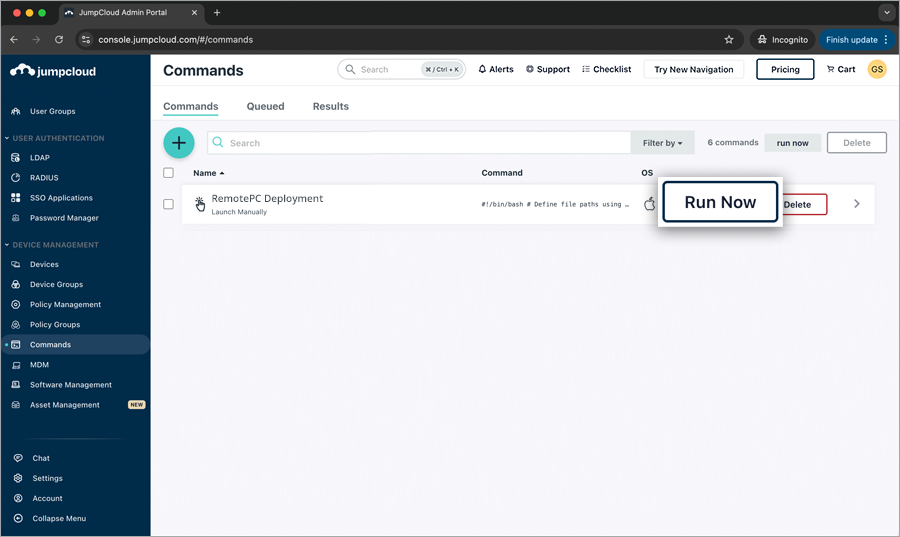
- To deploy the saved command immediately to all the devices, click on 'Run Now'. It may take some time for the machines to receive the deployment package.
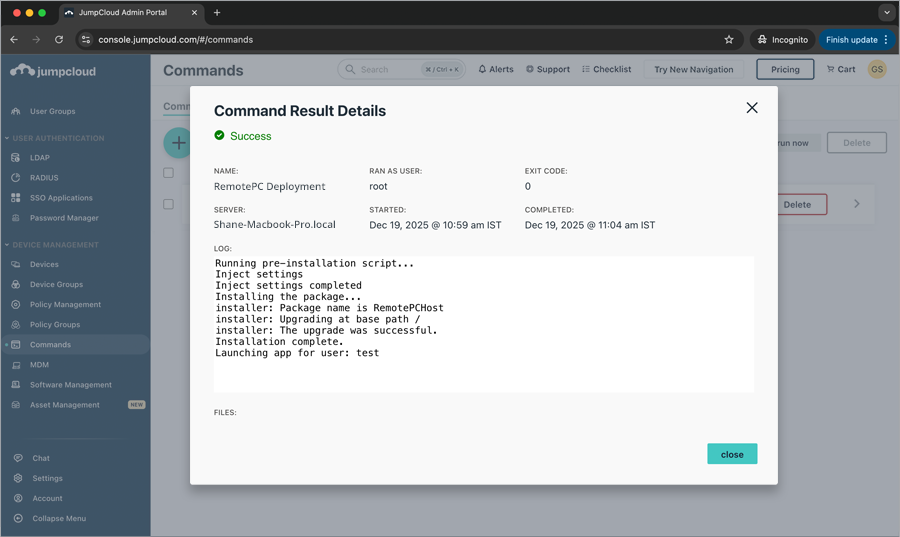
The command result details can be checked from the 'Results' tab.
 Once the RemotePC application is successfully installed, check for the device in the RemotePC dashboard. The machine will be listed in the dashboard under 'Computers'.