
Yes, you can remotely access your Android (7.0 or later) and Chromebook (9.0 or earlier) devices via desktop, mobile or the web using RemotePC.
Note:
- The on-screen keyboard is supported only on Samsung devices.
- For Chromebooks with version 10.0 or later, only File Transfer is available.
To set up remote access to Android devices and Chromebooks:
- Download and install RemotePC host on the Android and Chromebook devices you want to remotely view or manage.
Note: For version 7.0, the on-screen keyboard is supported only on Samsung devices.
- Sign in to the account using your RemotePC credentials.
- Configure the device name and set a personal key for authenticating device access.
In case you have signed in with a RemotePC Enterprise account, configure the device name and assign it to a group for remote access.
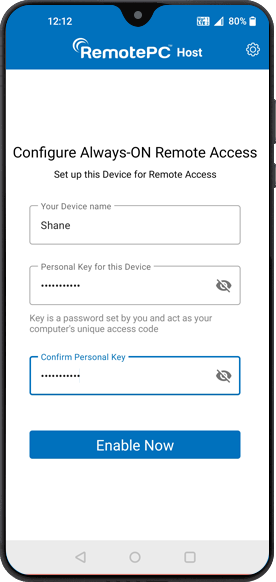
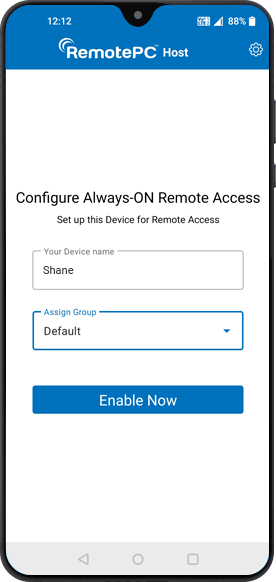
- Tap 'Enable Now'. This will enable 'Always-ON Remote Access'.
- The home screen will display prompts to configure access permissions for RemotePC Host. Click 'Configure'.
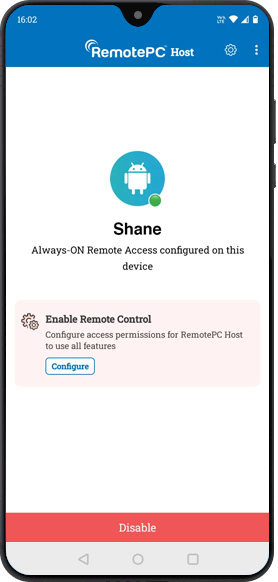
-
Configure each required permission to enable remote control, display over other apps, battery optimisation, file transfer and audio recording.

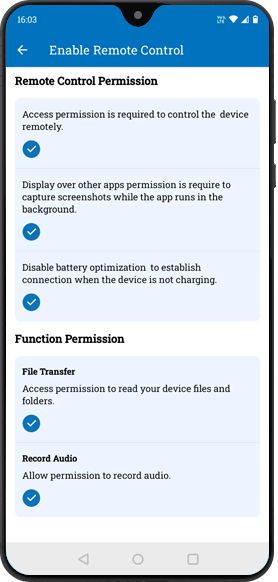
Remote accessibility is the permission to remotely control the device. When remote accessibility is not enabled, your device can be accessed only in view-only mode.
Note: Remote control is supported if the device runs Android 8 or later. The on-screen keyboard is supported only on Samsung devices. Chromebooks can be accessed in view-only mode.
To enable remote control of your device,
- Enable Always-ON Remote Access.
- Tap 'Configure' next to the accessibility prompt.
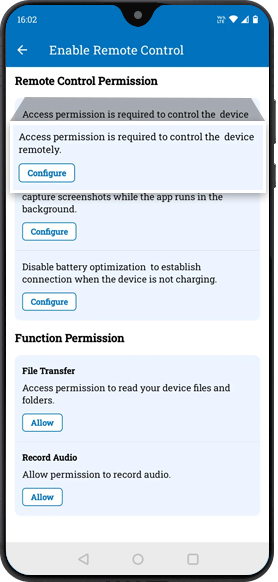
- Search for 'RemotePC Host' and enable remote accessibility via the application. Your device is now ready for remote control via RemotePC.
When the RemotePC host is allowed to 'Display Over Other Apps', you can capture screenshots on the device during a remote session.
To allow this access,
- Enable Always-ON Remote Access.
- Tap 'Configure' next to the prompt.

- Tap on 'RemotePC Host' and enable the feature.
When battery optimisation is enabled for a device, the 'Always-ON Remote Access' feature may be disabled to extend battery life. To resolve this issue, tap 'Configure' next to the prompt and disable battery optimisation.
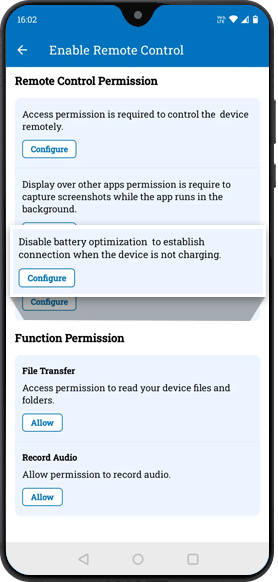
If your remote device is not appearing online after a restart, check if 'Battery Optimization' is enabled for RemotePC in the remote device settings application. Enabling 'Battery Optimization' allows the device to automatically appear as 'Online' when it is restarted locally or remotely.
You can remotely view and access the Android and Chromebook devices in your RemotePC account via desktop, mobile, or any web browser.
To access your device remotely,
- Sign in to your RemotePC account using the RemotePC desktop or mobile app. You can also sign in to your account directly from any web browser.
- Tap 'Connect' next to the online device you want to access remotely.
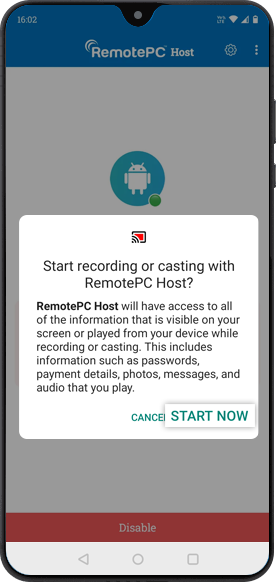
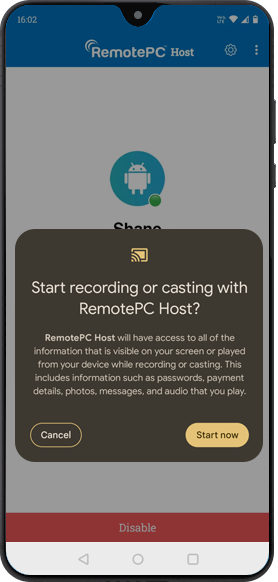
- When initiating a remote connection for the first time, the user of the Android device will be prompted to grant access permissions. Tap 'Start now' to allow access.
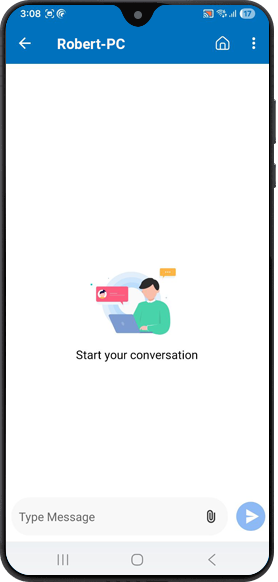
Yes, you can communicate with the remote user during a session using the chat feature. You can also send and receive attachments through chat. The feature supports simultaneous connections and chat sessions from multiple remote devices.
To start a chat,
- Launch the RemotePC host application and sign in.
- Connect to an online remote device.
- Tap
 and select 'Chat'.
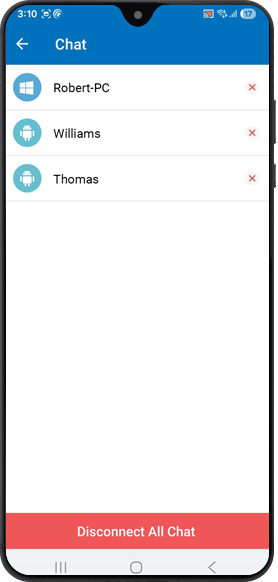
- Enter your message and tap
 .
.
Notes:
- During a remote session, chat can also be initiated from the RemotePC viewer device.
- Chat notifications appear even when the application runs in the background.
- To send or receive attachments, grant permission when prompted. Without permission, received attachments remain blocked.
- Chat history is saved only when you choose to save it.
To set or change the personal key:
- Launch the RemotePC host and sign in.
- Tap
 and select 'Set Personal Key'/'Change Personal Key'.
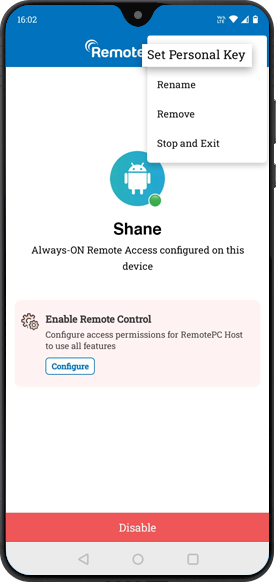
- Type a personal key and re-enter the key to confirm it.

- Tap 'Change'.
Note: The Personal Key is optional. Users can choose to set a Personal Key or skip this step when configuring the remote computer and set it later if required. This option is available for the versions mentioned below:
- Android - Version 1.4.1 and later
To disable Always-ON Remote Access,
- Launch the RemotePC host.
- Tap 'Disable'.
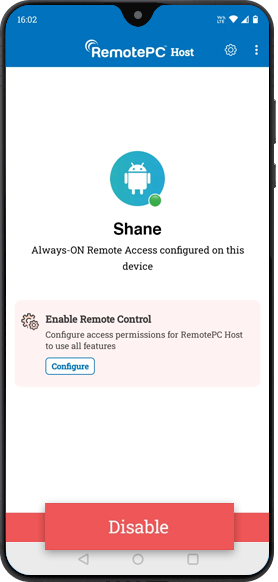
- Tap 'Yes' to confirm. Always-ON Remote Access will be disabled for the device.
Yes, you can enable the 'Unattended access' option under Settings > 'General'. This will allow RemotePC users to connect with the device without manual intervention.

Yes, you can listen to audio from your Android device on the RemotePC Viewer device.
To set up remote sound,
- Ensure remote sound is enabled on the RemotePC Viewer device.
- Enable Always-ON Remote Access.
- Tap 'Allow' for the Record Audio permission.
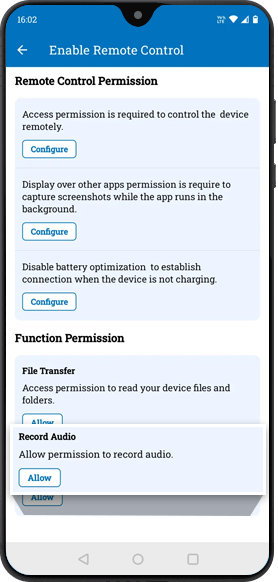
Note: Remote sound is not supported when Chromebooks are used as hosts.
To rename the device,
- Launch the RemotePC host application and sign in.
- Tap and select 'Rename'.
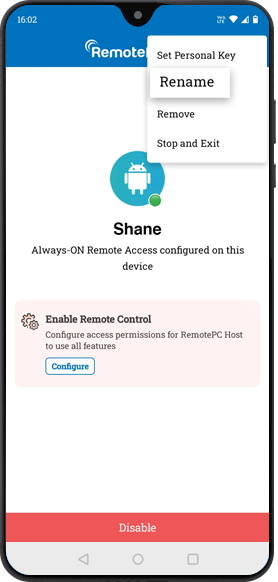
- Enter a new device name and tap 'Rename'.
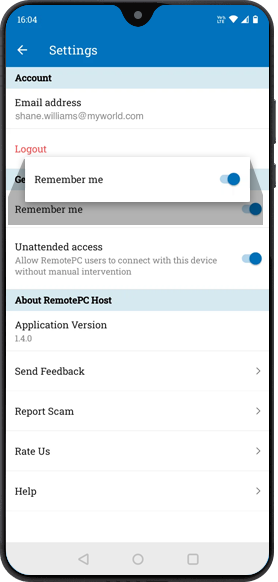
To save your credentials,
- Launch the RemotePC host application and sign in.
- Tap
 .
. - Enable 'Remember me' and your credentials will be saved. You will be automatically signed in when you launch the host after a 'Stop and exit'.
When trying to access an Android device running Android 14 or later, you must grant screen recording or casting permissions. These permissions must be granted the first time you connect to the device.
Once these permissions are granted, most of the devices will have a red-dotted icon
 on their screen, which indicates that you can access this Android device via RemotePC at any time.
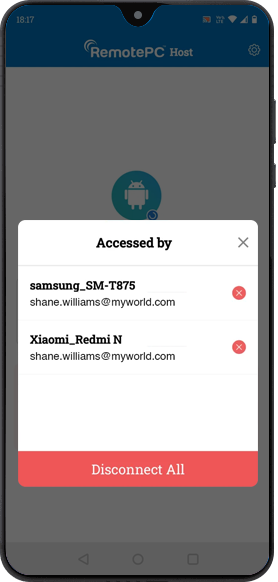
Disconnect an ongoing remote access session on your device by tapping 'Disconnect' on the RemotePC host. Tap and select 'Stop and exit' to sign out and disable further remote access.
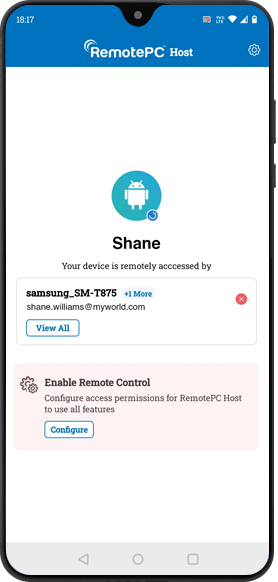
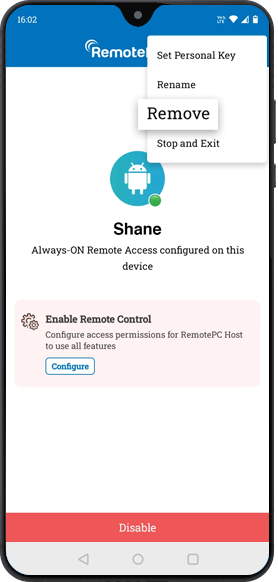
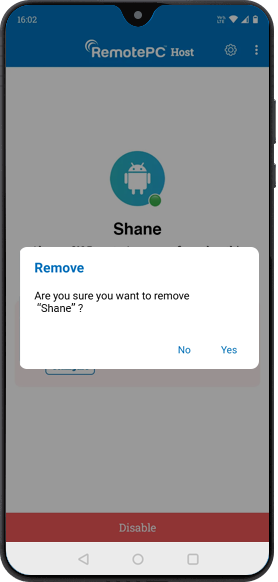
To remove a device,
- Launch the RemotePC host.
- Tap , and select 'Remove'.
- Tap 'Yes' to confirm.
| * Note: Personal Key is optional for new accounts created on or after 20 December 2025. |