For Team and Pro Users |
|
|
If your question is not addressed below, please contact us through our support form and we'll get back to you shortly. | |
 |
What user management tasks can an administrator perform using the Dashboard? |
|
Can I create groups to organise my users? |
|
How do I move users between groups? |
|
How can I rename or delete a group? |
|
Can I pay monthly for my RemotePC account? |
|
I want to view logs of my account. How can I do that? |
Administrators can create or delete user accounts, organise them into groups and move users between groups from the 'User Management' tab in the Dashboard.
To add users:
- Log in to RemotePC via a web browser.
- Click 'Add User'. The 'Add User' window appears.
- Enter the email address of the user you want to add and select the group name from the 'Group Name' drop-down list.
- Click 'Invite'.
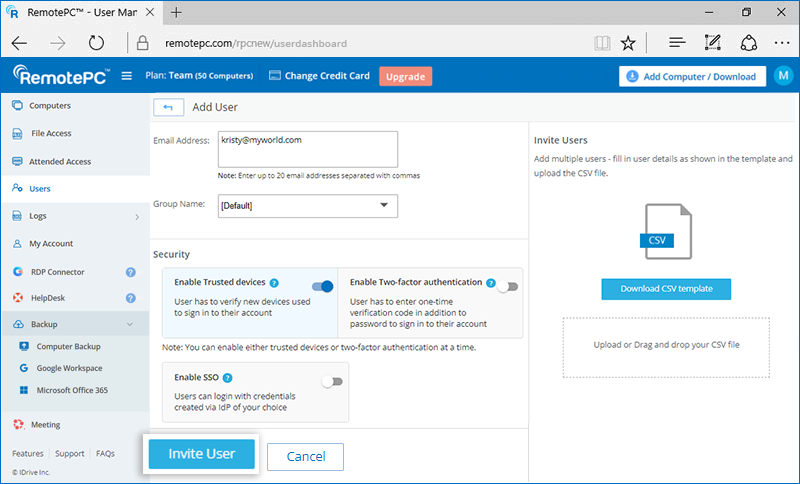
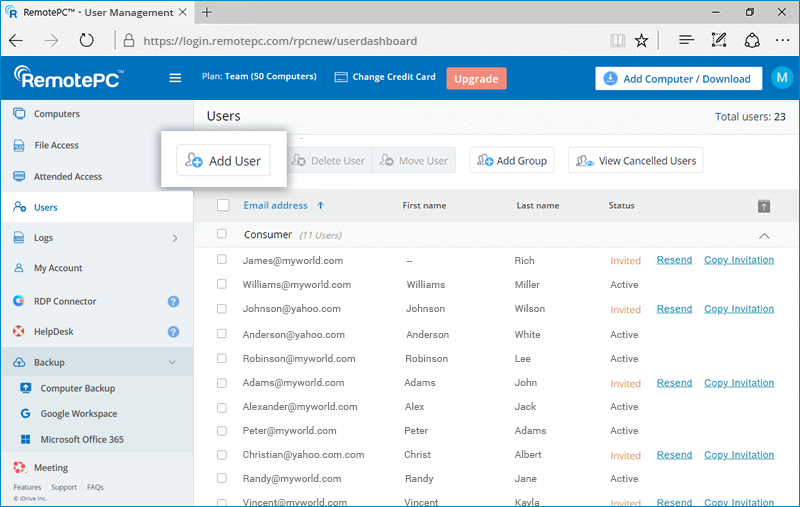
The invited user will receive an email with a link to register with RemotePC. Once the user registers with RemotePC, their account will be added to your account.
To delete users:
- Log in to RemotePC via a web browser.
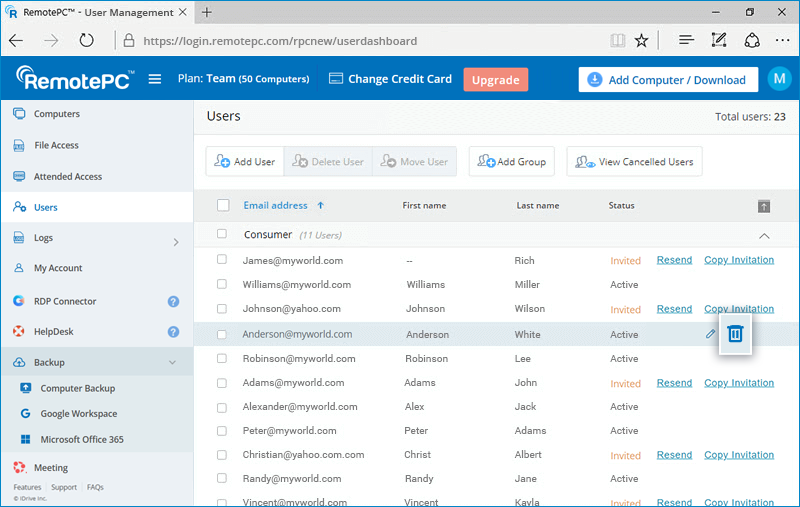
- To delete a single user, hover over the user you want to delete and click
 . To delete multiple users from the list, select the users and click 'Delete User'.
 - Click 'Yes' in the confirmation window.

Note: For Pro accounts under User Licence Pricing, you can add users up to the number of licences included in your plan. To add more users, you must purchase additional licences or upgrade your plan.
Yes, you can create groups to organise your users.
To create a group:
- Log in to RemotePC via a web browser.
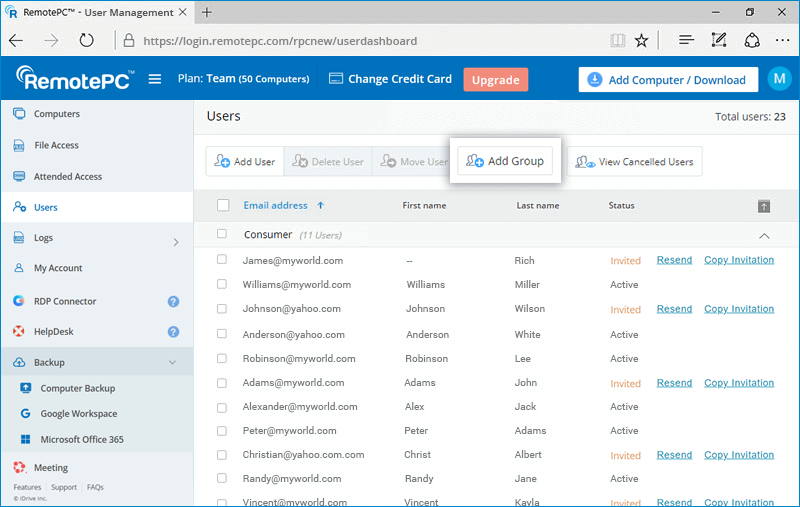
- Click 'Add Group' displayed in the menu bar.
- Enter a name in the 'Group name' field, and click 'Add'.

To move users between groups:
- Log in to RemotePC via a web browser.
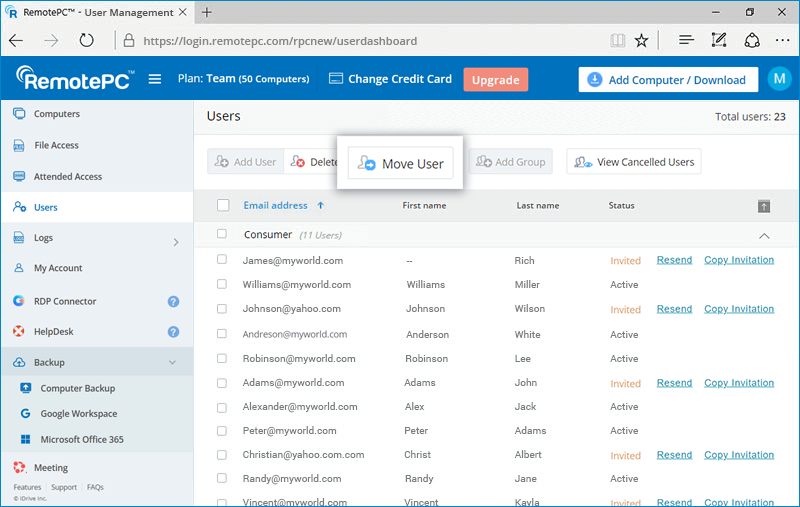
- Select the users you wish to move.
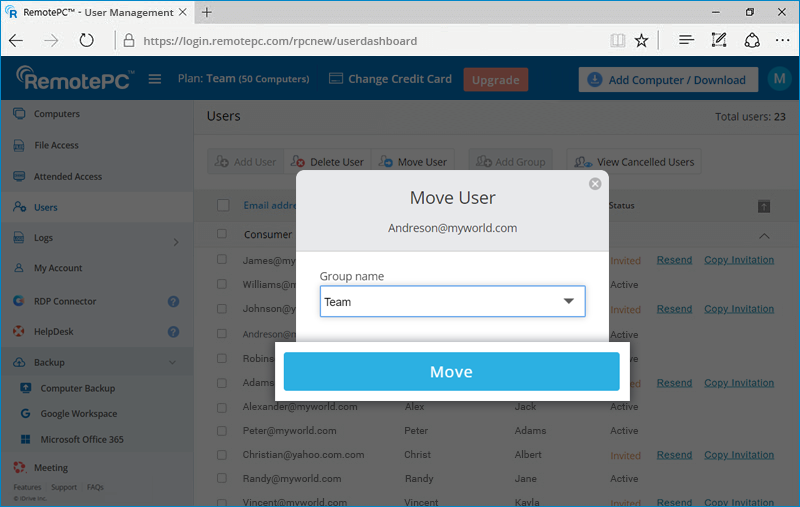
- Click 'Move User'. The 'Move User' window appears.
- Select the required group from the 'Group name' drop-down list.
- Click 'Move'.
To rename a group:
- Log in to RemotePC via a web browser. The list of groups and associated users appears.
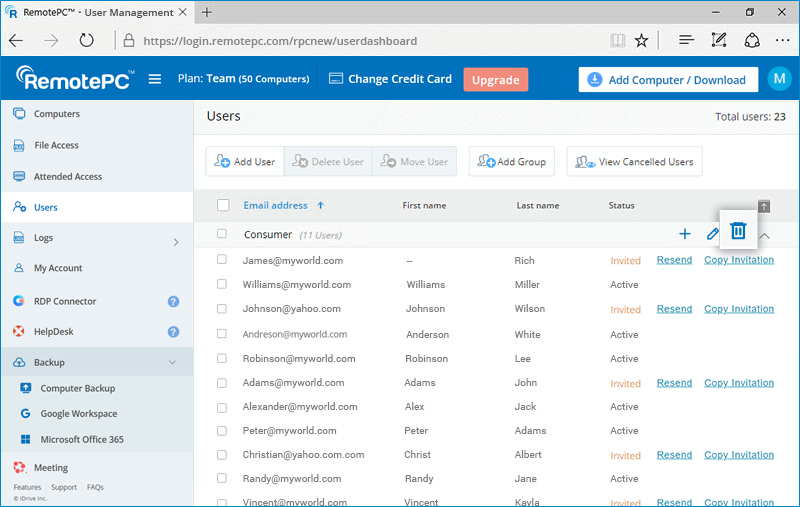
- Hover over the group you want to rename and click
 .
. - Enter the new name in the 'Group name' field and click 'Save'.
To delete a group:
- Log in to RemotePC via a web browser. The list of groups and associated users appears.
- Hover over the group you want to delete and click .
- Click 'Ok' in the confirmation window.
Yes, you can pay monthly for RemotePC Pro, Team and Enterprise plans. Any add-ons, such as Remote Backup, RDP Connector and HelpDesk, will be billed within the monthly payment cycle. You may also upgrade your plan with monthly payments or switch to an annual plan.
You can view remote access logs for unattended and attended sessions under 'Logs', and web activity logs of your account under 'Activity Logs'.
To view remote access logs for any period within the last 90 days:
- Log in to RemotePC via a web browser.
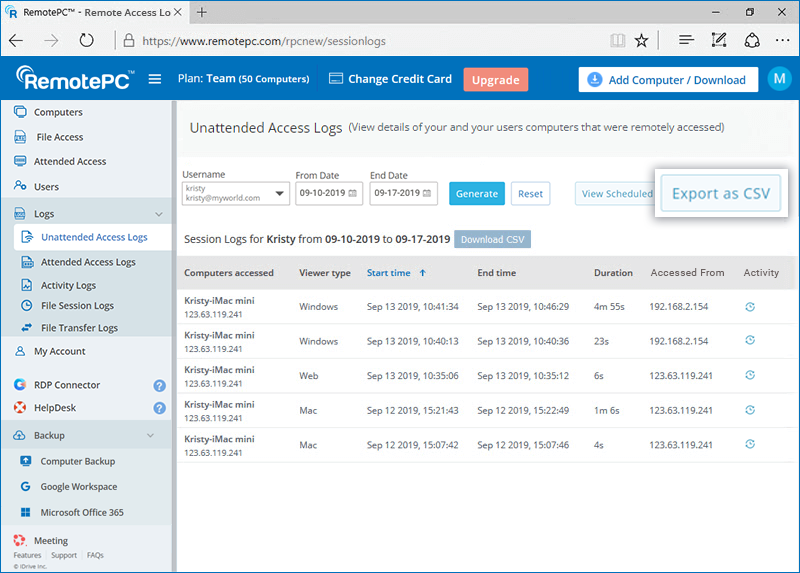
- Click 'Logs' and go to 'Unattended Access Logs' for unattended remote session details or 'Attended Access Logs' for attended remote session details.
- Select the date range and click 'Generate'.
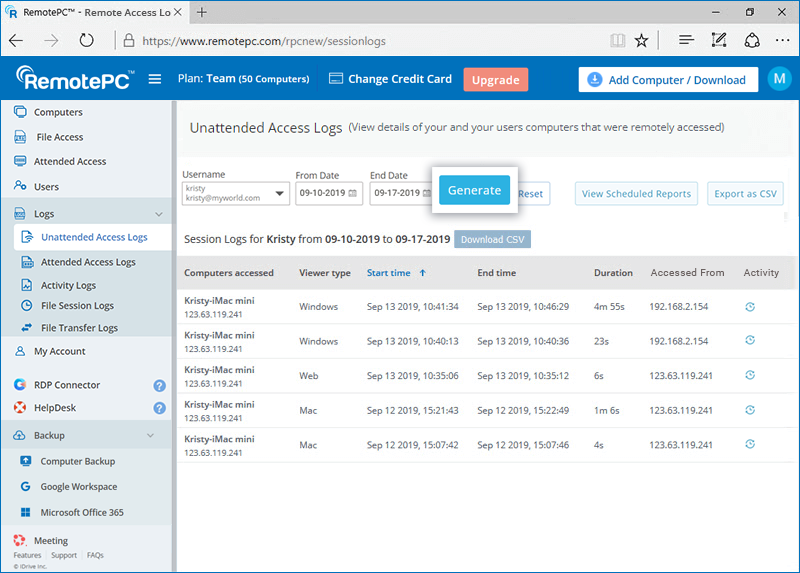
Remote access logs will be displayed with information such as the computer accessed, viewer type, start time, end time and IP address.
- Select 'From Date' and 'End Date'
- Click 'Download CSV'.
To export logs older than 90 days as a CSV file:
- Click 'Export as CSV'.
- Select the required username from the drop-down.
- Select the month and year and click 'Download'.
- Log in to RemotePC via a web browser.
- Click 'Activity Logs'.
- Select the date range and click 'Generate'.
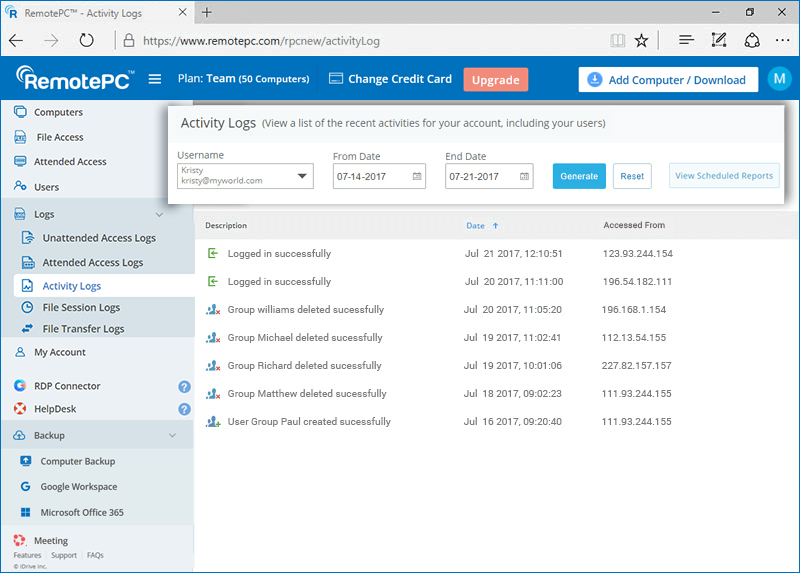
Web activity logs will be displayed with information such as a description, the date and time of the last activity, and the IP address.
Note: Administrators can also view remote access logs and web activity logs for user accounts by selecting the user from the 'Username' drop-down list.