Firewall Guidance
The RemotePC application is designed to be firewall-friendly. In most cases, you simply need to allow access when prompted by the firewall during installation of the RemotePC application.
If you need to configure the firewall permissions manually, allow the following TCP port and executables.
| Server address | : | *.remotepc.com |
| Port number | : | 443 |
| Executables for Windows OS | : | RemotePCUI.exe RemotePCDesktop.exe RemotePCService.exe RPCFTViewer.exe RPCFTHost.exe RPCCoreViewer.exe RPCUtilityHost.exe RPCDownloader.exe RPCFirewall.exe RPCUtilityViewer.exe RPCPrinterDownloader.exe RemotePCLauncher.exe RPCViewerUI.exe PreUninstall.exe |
| Executables for Mac OS | ||
| Consumer/SOHO and Team Plan | : | RemotePCSuite File Transfer Host File Transfer HostUtilityTransfer RemotePCDesktop RemotePCView RPCVersionUpdate ViewerUtilityTransfer RemoteDPCService RemotePCHelper |
| Enterprise Plan (Viewer) | : | RemotePCViewer RemotePCView File Transfer ViewerUtilityTransfer |
| Enterprise Plan (Host) | : | RemotePCHost Host File Transfer HostUtilityTransfer RemotePCDesktopHost RemoteDPCServiceHost RemotePCHelperHost RPCVersionUpdate |
Firewall configuration for network issues
A firewall may be blocking the network connection. Try the troubleshooting steps below to see whether they resolve the issue.
Windows
- Turn off the firewall.
- Go to 'Firewall & Network Protection' > Click on 'Domain Network' > Turn 'Windows Defender Firewall' to 'off'.
- Go to 'Firewall & Network Protection' > Click on 'Private Network' > Turn 'Windows Defender Firewall' to 'off'.
- Go to 'Firewall & Network Protection' > Click on 'Public Network' > Turn 'Windows Defender Firewall' to 'off'.
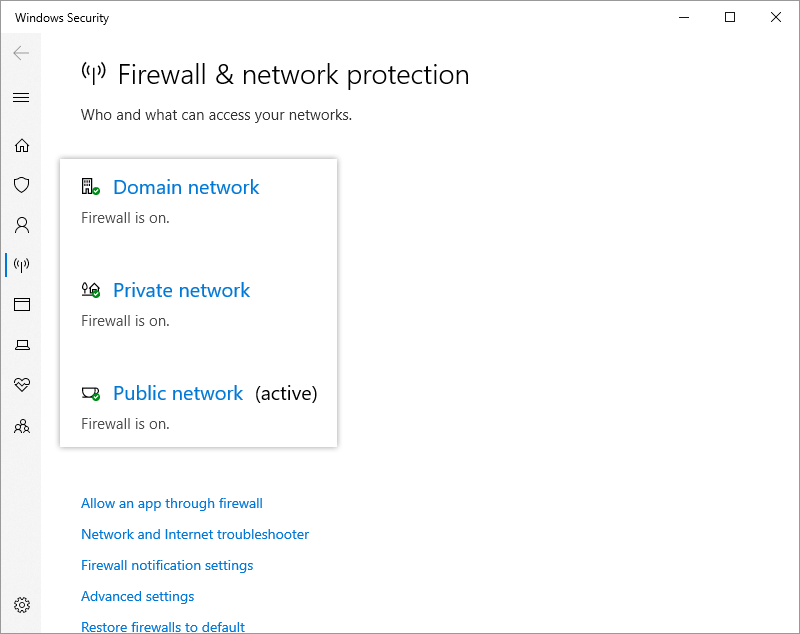
- Allow inbound connections in the Windows firewall.
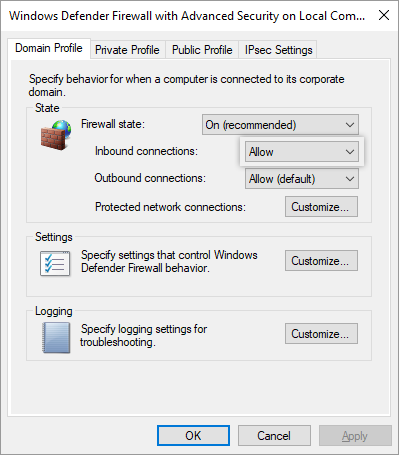
- Go to 'Windows defender firewall with advanced security' > 'Actions' > 'Properties' > 'Domain Profile' > 'Inbound connections', select 'Allow' in the drop-down list and click 'Apply'.
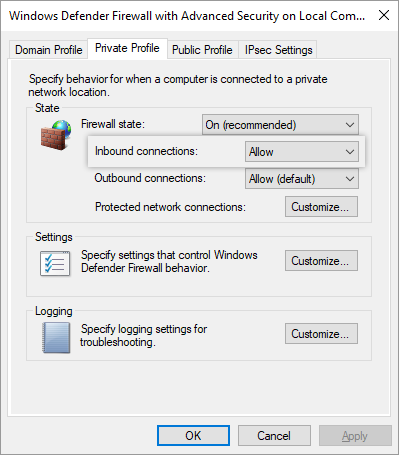
- Go to 'Windows defender firewall with advanced security' > 'Actions' > 'Properties' > 'Private Profile' > 'Inbound connections', select 'Allow' in the drop-down list and click 'Apply'.
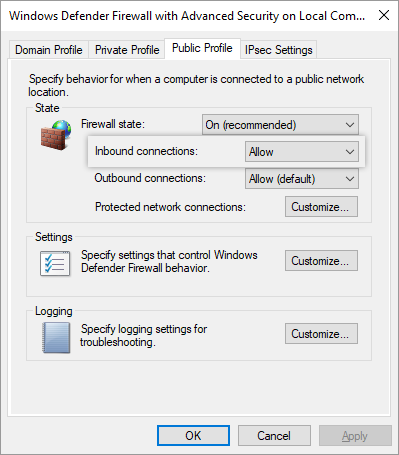
- Go to 'Windows defender firewall with advanced security' > 'Actions' > 'Properties' > 'Public Profile' > 'Inbound connections', select 'Allow' in the drop-down list and click 'Apply'.
For XP and Vista
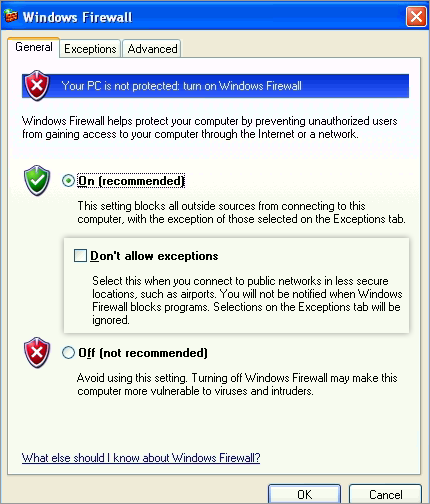
- Go to 'Control Panel' > 'Network and Internet Connections' > 'Windows Firewall' and make sure 'Don't allow exceptions' or 'Block incoming connection' is unticked.
- Go to the 'Exceptions' tab and add the files listed in the Firewall Guidance section.
MAC
- Turn off the firewall.
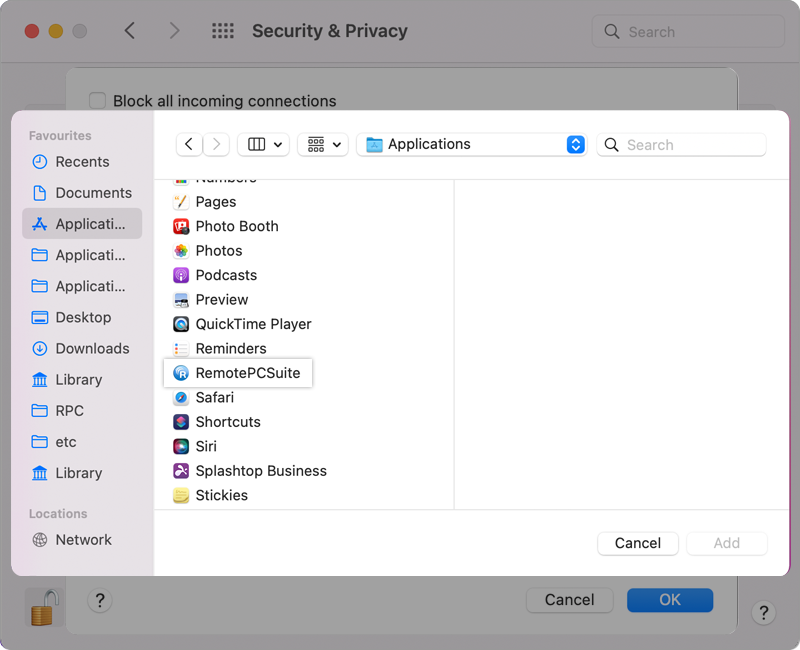
- If you need to keep the firewall on, follow the steps below:
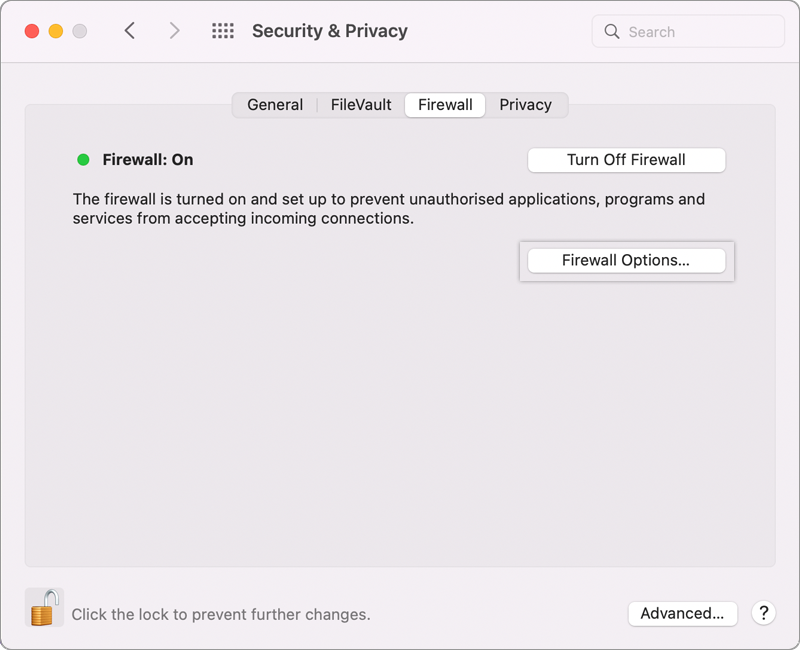
- 'System Preferences' > 'Security & Privacy' > 'Turn On Firewall' > 'Firewall Options…'.
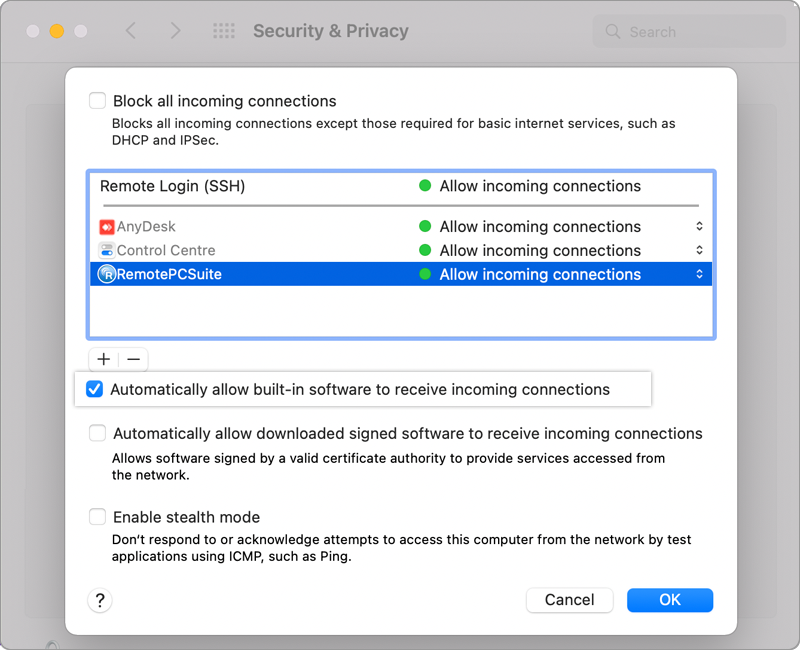
- Untick 'Block all incoming connections'.
- Tick the 'Automatically allow signed software to receive incoming connections' checkbox.
- Click
 and select all the RemotePC executables and applications.
 - You may be prompted to allow 'RemoteDPCService' to access incoming network connections. Click 'Allow'.
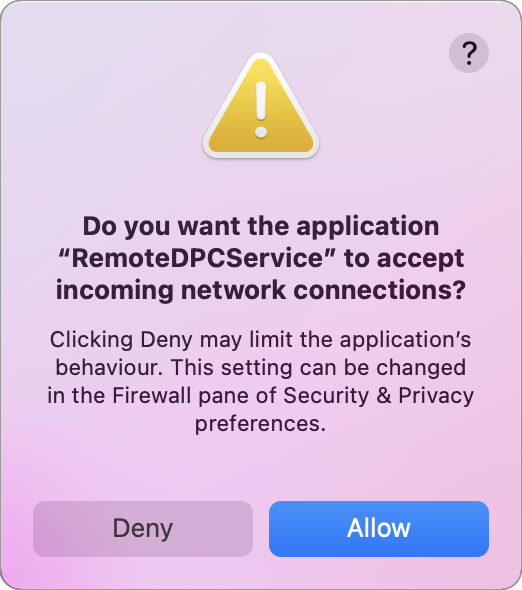
This message may appear when you first launch RemotePC after installation. Restart the computer to apply the modified firewall settings.
- Your public IP address might be blocked. Share your public IP address with [email protected] to have it unblocked.
- Whitelist the IP addresses: Contact [email protected] to obtain the IP addresses to whitelist.
- Add an exception to the Norton firewall: see these instructions for reference.
- Add an exception to the AVG firewall: see these instructions for reference.
If the issue is still not resolved: