Remote File Access |
|
|
If your question is not addressed below, please contact us through our support form and we'll get back to you shortly. |
|
 |
What is remote file access? |
|
How do I access the files/folders on my remote computer? |
|
What operations can I perform from the File Access tab? |
|
How do I upload files and folders to a remote computer? |
|
How do I download files and folders from a remote computer? |
|
How do I delete files and folders on the remote computer? |
|
Can I limit my search for files and folders to a specific folder? |
Remote file access allows you to seamlessly access and manage files and folders on remote computers. It is compatible across different platforms, including desktop, mobile and web. The feature makes it easy to search for files on the remote computer. It lets you upload files to the remote computer and download remote files to the local device.
Note: This feature is not available for Enterprise users.
To access the files/folders of a configured computer,
- Log in to RemotePC via a web browser.
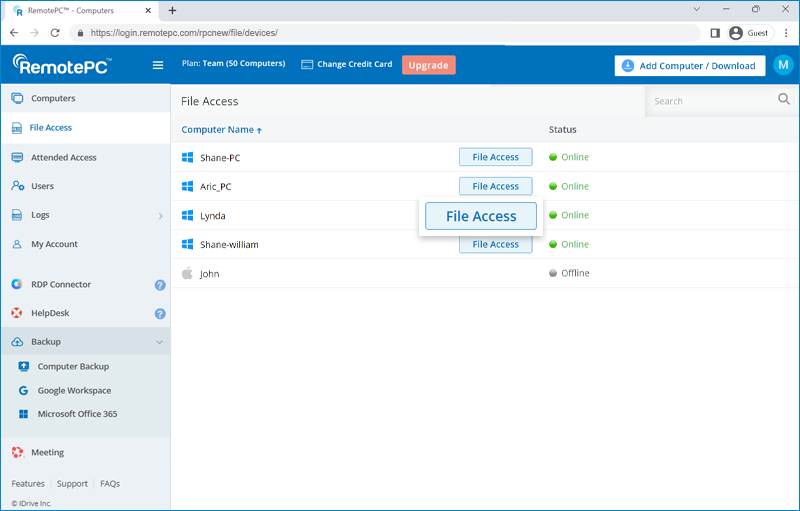
- Go to File Access, and click File Access beside the computer you wish to access.
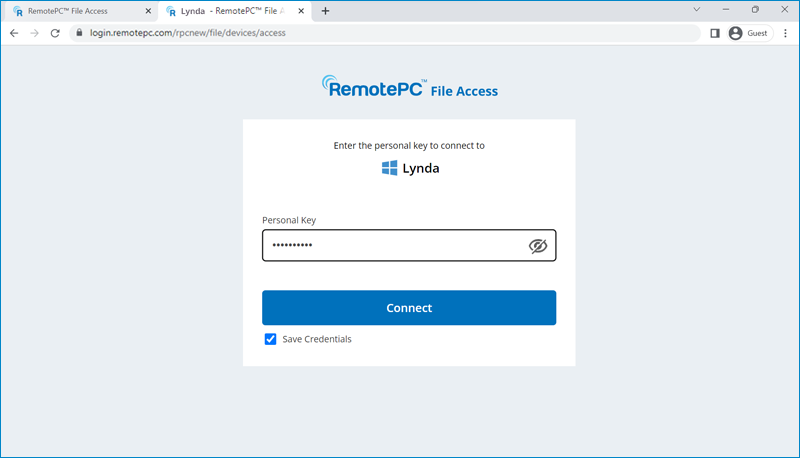
- Enter the Personal Key to authenticate your access and click Connect.
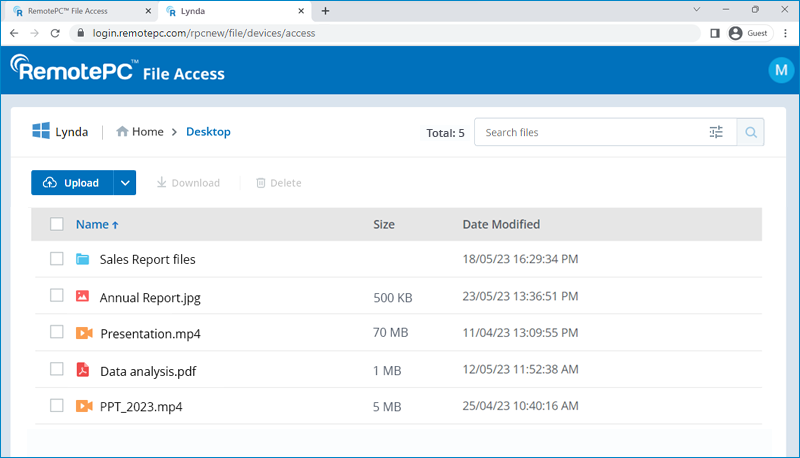
You can now access and manage the files and folders on the computer.
On successfully connecting to the files/folders of the remote computer via File Access, you can perform the following operations:
- Remote file search: Browse and search for files and folders on the remote system.
- Remote file upload: Upload multiple files/folders to the remote computer.
- Remote file download: Download multiple files/folders to your local computer.
- Remote file deletion: Delete files/folders on the remote computer.
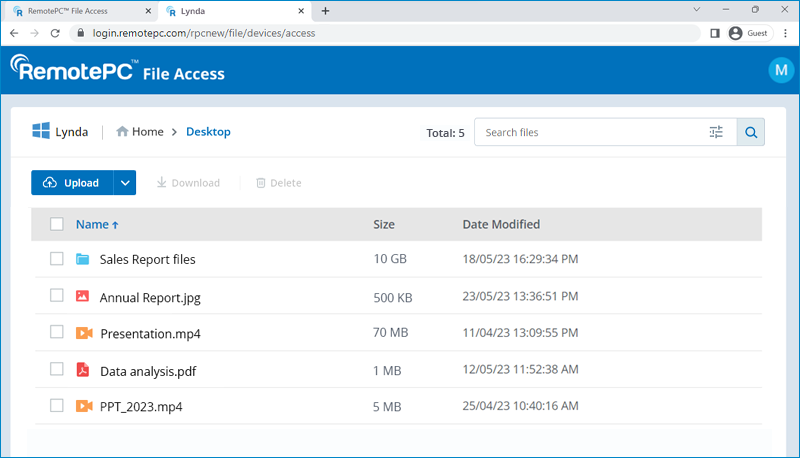
To upload files/folders to a remote computer,
- Go to File Access, and click File Access beside the computer you wish to access.
- Click the destination folder on the remote computer.
- Click Upload and choose Files or Folders.
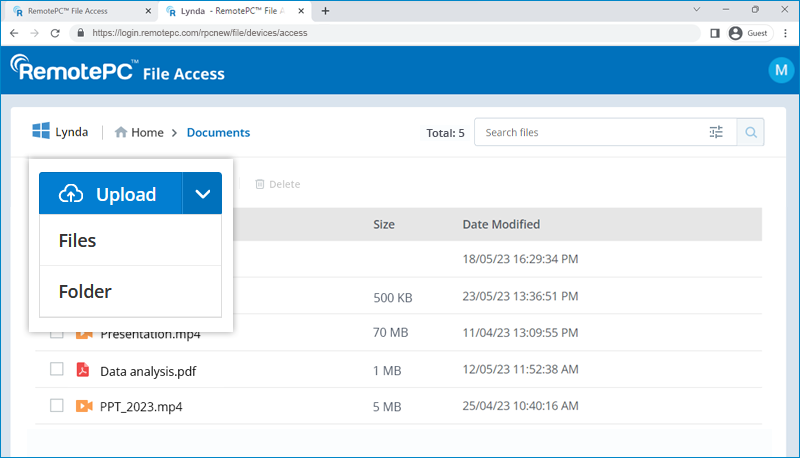
- Select the required files or folders from your local storage.
- The files/folders will be uploaded.
To download remote files/folders to your local computer,
- Go to File Access, and click File Access beside the computer you wish to access.
- Hover over the file that you wish to download and click
 .
.
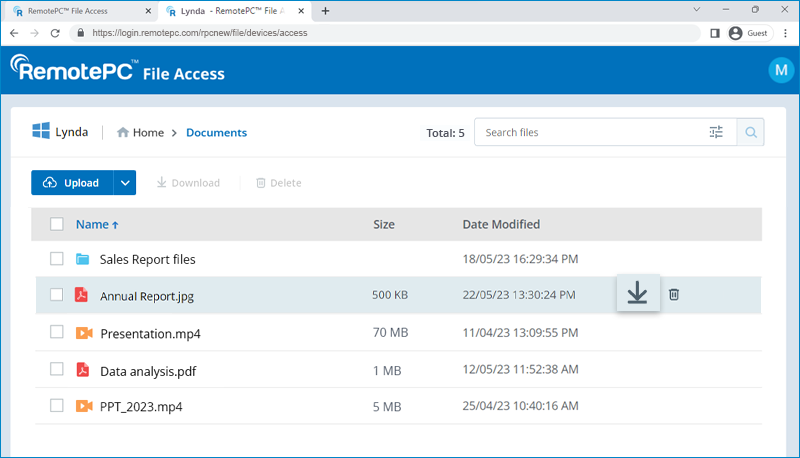
- Select the destination folder on your local computer.
- The file will be downloaded.
To delete files/folders on the remote computer,
- Go to File Access, and click File Access beside the computer you wish to access.
- Hover over the file that you wish to delete and click
 .
.
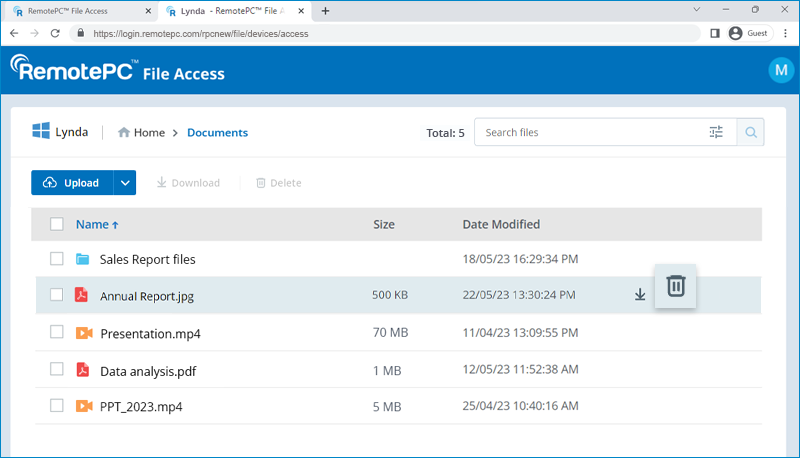
- Click Delete in the confirmation pop-up.
- The file will be deleted.
Yes, you can limit your search for files and folders to a specific folder.
To find a specific file or folder on your remote computer:
- Log in to RemotePC via a web browser.
- Go to File Access, and click File Access beside the computer you wish to access.
- Enter the Personal Key to authenticate your access and click Connect.
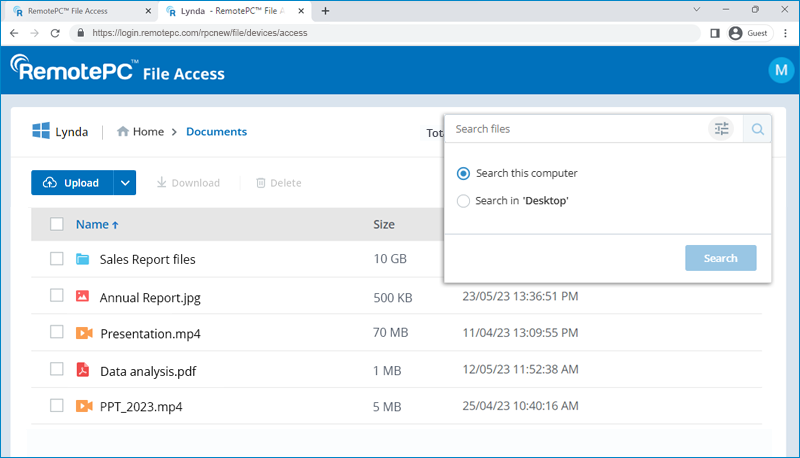
- Navigate to any internal folder, enter a search term and press the Enter key. The search results for that term on the computer will be displayed.
- To filter this search, click
 , choose the radio button that narrows down the results to the open internal folder, and click Search. Example: Search in 'Documents'.