Setting Up SSO
The administrator of a Team or Enterprise account can configure SSO to access RemotePC by signing in to a central identity provider. To set up SSO, the administrator needs to:
Configure your identity provider
RemotePC supports signing in with credentials created using Standard Assertion Markup Language (SAML) 2.0. To implement SAML authentication, you need SAML URLs and a certificate, which you can obtain from any supported IdP.
Once an administrator registers with an IdP of their choice, they will receive the following:
- IdP Issuer URL: This URL uniquely identifies the application for which single sign-on is being configured.
- Single Sign-On URL: This URL processes an authentication request from the user's browser and returns an authentication response to verify the user.
- X.509 certificate (Base64): An X.509 certificate is a security certificate that you receive from your identity provider to verify your identity. It comes in different formats, but RemotePC only accepts certificates in .pem or .cer format.
Configure your RemotePC account
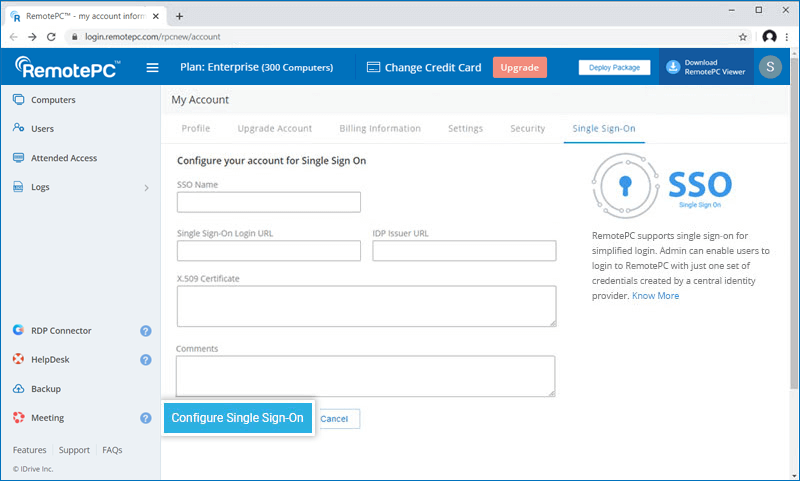
The administrator needs to enter the SAML URLs and certificate received from their IdP in the Single Sign-On application via the RemotePC web interface.
To set up SSO:
- Log in to RemotePC via a web browser.
- Click the username displayed in the top-right corner and click 'My Account'.
- Click 'Single Sign-On'.
- Enter a name for your SSO profile.
- Enter the URLs and add the X.509 certificate received from your IdP.
Note: The X.509 certificate must be in .pem or .cer format. - Click 'Configure Single Sign-On'.
You will receive an email when SSO is enabled.
