Deploy RemotePC MSI package via Microsoft Intune
Using the RemotePC MSI deployment package, remotely install the application on multiple computers or groups via Microsoft Intune.
Prerequisites for remote MSI deployment:
- Login and download the RemotePC MSI installer package
- Copy the Configuration ID that is applicable for your account
Read the detailed steps below to know more about how to deploy the RemotePC MSI package using Microsoft Intune.
- Sign in to the 'Microsoft Endpoint Manager' admin center.
- Navigate to 'Apps' > 'Windows'.
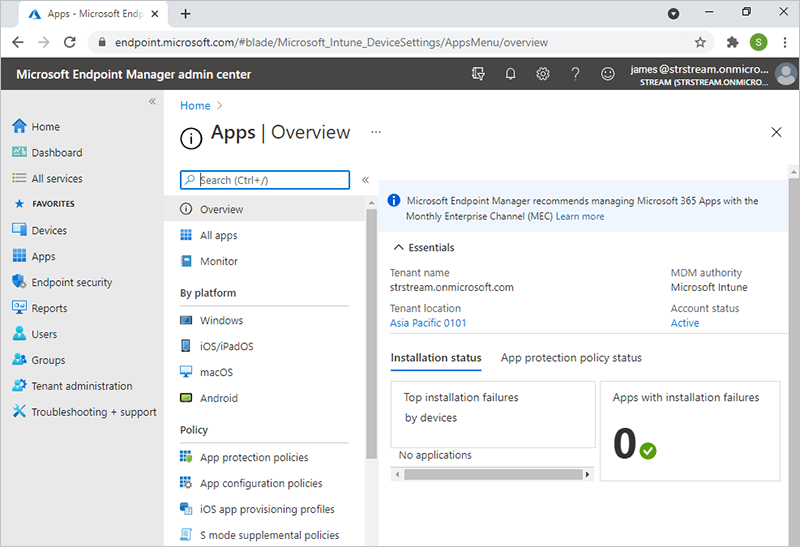
- Click 'Add', and choose 'Line-of-business app' from the drop-down. Click the 'Select' button.
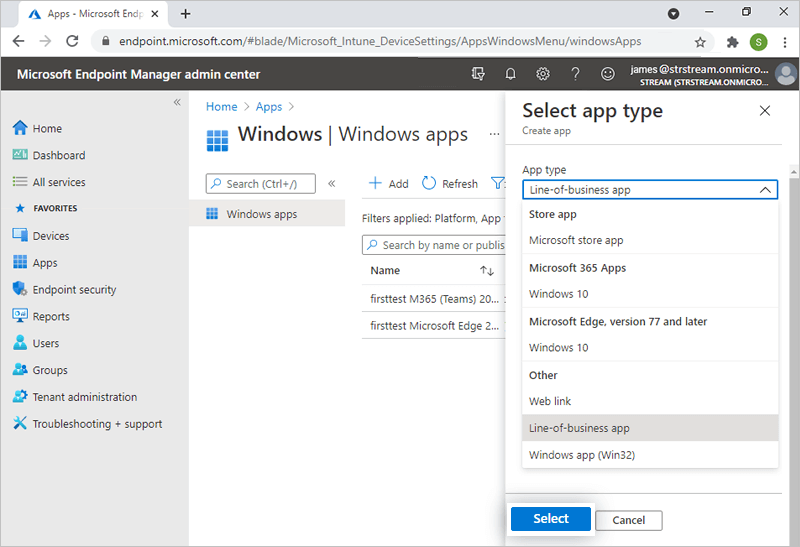
- In the 'Add App' screen, click 'Select app package file'.
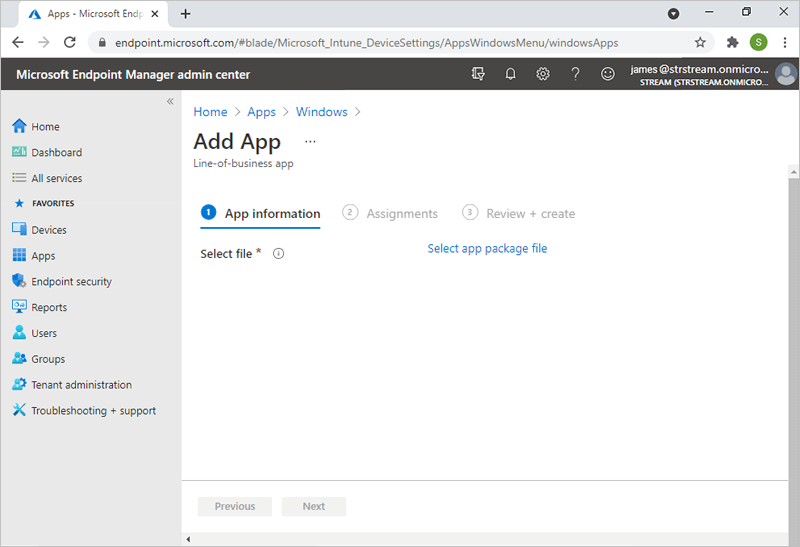
- Click
 and locate the downloaded RemotePC MSI installer package on your computer, and click 'Ok'.
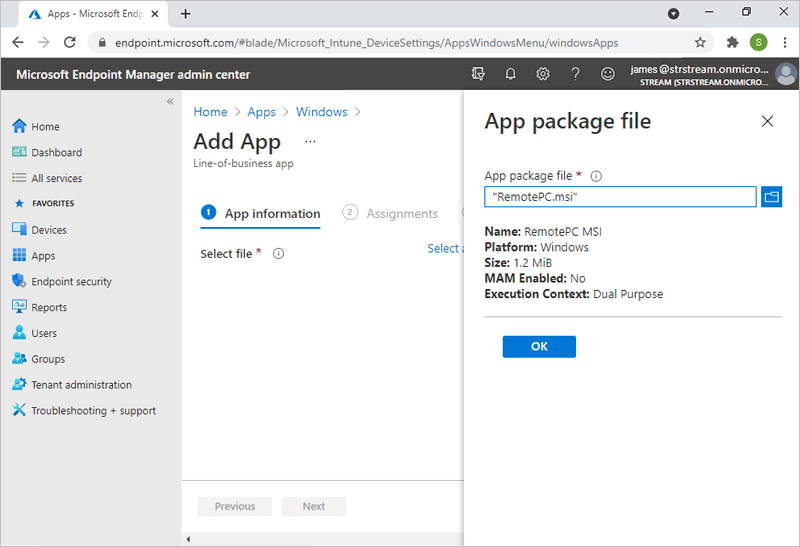
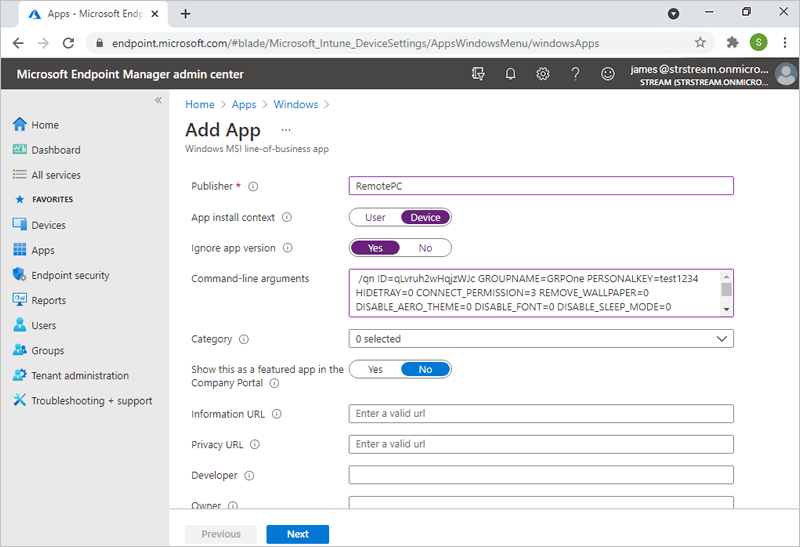
- You will be navigated to the App Information section. Add the following parameters:
- COMPUTERNAME should be between 1 to 50 characters.
- In case the group name does not exist, a new group will be created with the submitted name and the computer will be assigned to it.
- If the computer already exists in any other group, it will be moved to the new group specified by the user.
- Click 'Next'.
- Click '+Add group'. Choose the group in which you want to deploy the agent and click the 'Select' button. You can also select '+Add all users' or '+Add all devices' if you wish to deploy the application for all users or all devices, respectively.
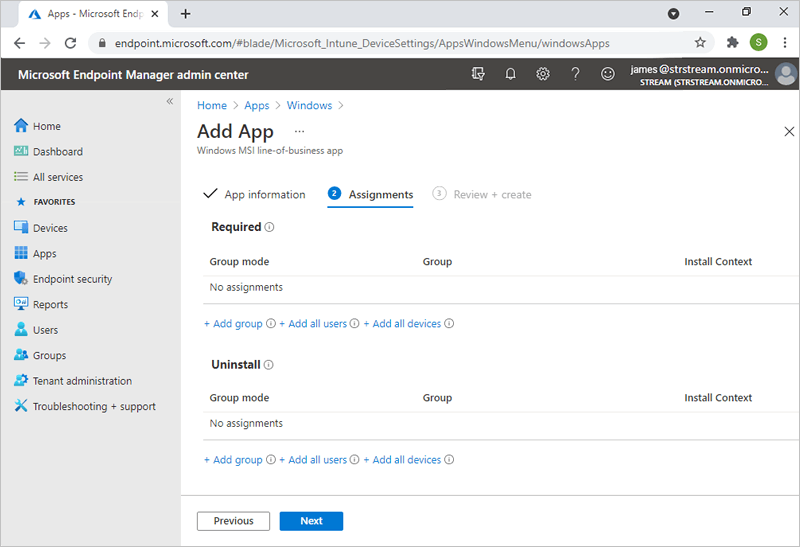
- Click 'Next'.
- Review the changes and click 'Create'.
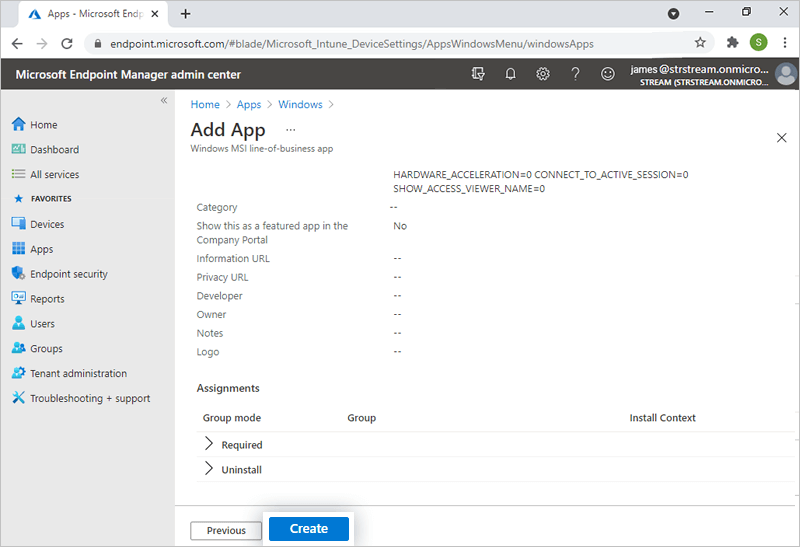
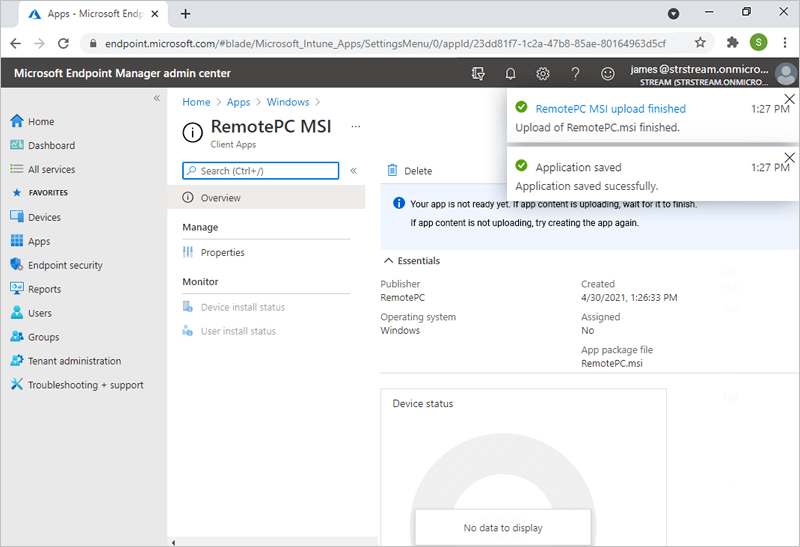
- Wait till the RemotePC MSI file upload is completed and the application is saved.
Publisher: RemotePC
App install context: Select 'Device' or 'User' based on your preference
Ignore app version: Yes
Command-line arguments:
/qn ID=qLvrh44WHqjzWJc GROUPNAME=GRPOne PERSONALKEY=test1234 HIDETRAY=0 CONNECT_PERMISSION=3 REMOVE_WALLPAPER=0 DISABLE_AERO_THEME=0 DISABLE_FONT=0 DISABLE_SLEEP_MODE=0 HARDWARE_ACCELERATION=0 CONNECT_TO_ACTIVE_SESSION=0 SHOW_ACCESS_VIEWER_NAME=0 SHOW_CONFIRM=0 COMPUTERNAME=<Computer Name>
The parameters and their descriptions are given below:
| Parameters | Description |
|---|---|
| ID | This is a mandatory parameter and you can find it under Deploy Package > Group deployment via MSI > Configuration ID in your RemotePC account |
| PERSONALKEY | Set a 'Personal Key' for the remote computer |
| GROUPNAME | Name of the group in which the computer will be assigned * |
| COMPUTERNAME | Name of the machine assigned to the host |
| UNINSTALL | Uninstall RemotePC host using the MSI command
UNINSTALL=yes Note: Do not combine this with other parameters |
| HIDETRAY | |
| 1 | Enabling this option will prevent users from accessing the tray options on their remote computers |
| 0 | Unhide tray and allow users to access tray options |
| CONNECT_PERMISSION | |
| 0 | Connection request permission is disabled |
| 1 | Automatically decline connection in the login screen after the request expires |
| 2 | Automatically allow connection in the login screen after the request expires |
| 3 | Allow connection after the request expires |
| REMOVE_WALLPAPER | |
| 1 | Enabling this option will remove the wallpaper during remote session |
| 0 | Wallpaper is displayed during remote session |
| DISABLE_AERO_THEME | |
| 1 | Disable the aero theme during remote session |
| 0 | Aero theme remains active during remote session |
| DISABLE_FONT | |
| 1 | Font smoothing is disabled during the remote session |
| 0 | Font smoothing is enabled |
| DISABLE_SLEEP_MODE | |
| 1 | Disable sleep mode when host is configured |
| 0 | If this option is disabled, the remote computer will go to sleep mode after a specific time |
| HARDWARE_ACCELERATION | |
| 1 | Use hardware acceleration during the remote session |
| 0 | Hardware acceleration is disabled |
| CONNECT_TO_ACTIVE_SESSION | |
| 1 | Enabling this option will allow users to connect to an active session |
| 0 | Connection to an active session is disabled |
| SHOW_ACCESS_VIEWER_NAME | |
| 1 | Show notification for who is accessing during a remote session |
| 0 | Hide notification for who is accessing during a remote session |
| SHOW_CONFIRM | |
| 0 | Do not display consent window; configure host automatically. |
| 1 (or any value) | Display consent window on host; Confirm – Machine comes online; Reject – Machine remains offline. |
*Note:
It may take some time for the machines to receive the deployment package. To speed up the process, you may manually sync the Windows 10 devices. Click here to read on how to sync from Microsoft Intune or via Windows 10 Machine.
Uninstall RemotePC host using MSI
- Launch command prompt in administrator mode.
- Ensure that the path is: C:\WINDOWS\system32>
- Uninstall RemotePC host using the command:
msiexec.exe /i
/qn UNINSTALL=yes
For Example:
msiexec.exe /i "C:\Users\Test\Desktop\MSI\UN\RemotePC.msi" /qn UNINSTALL=yes