Deploy the RemotePC MSI package via NinjaOne
Remotely install the application on multiple endpoints or groups via NinjaOne using the RemotePC MSI deployment package.
Prerequisites for Remote MSI Deployment:
- Log in and download the RemotePC MSI installer package.
- Copy the Configuration ID for your account.
Read the detailed steps below to learn how to deploy the RemotePC MSI package using NinjaOne.
- Sign in to the NinjaOne admin center.
- Navigate to Administration > Library > Automation.
- Click +Add Automation on the right side of the screen and select Installation from the dropdown.
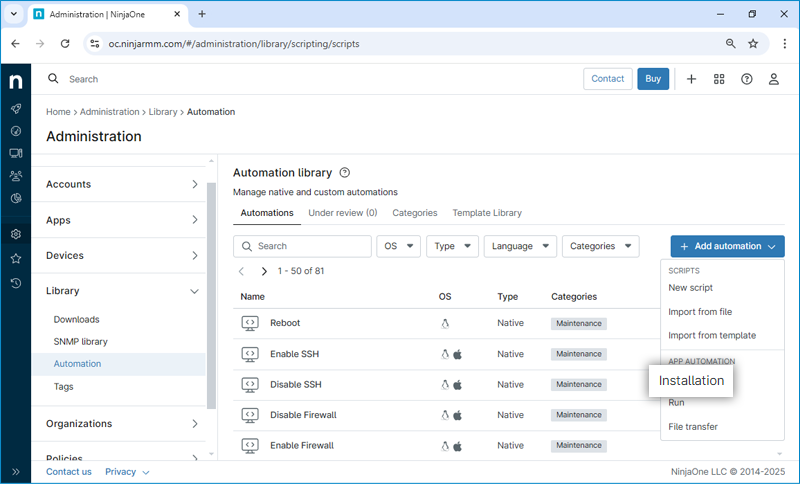
- The Install Application dialog box appears. Enter the following details:
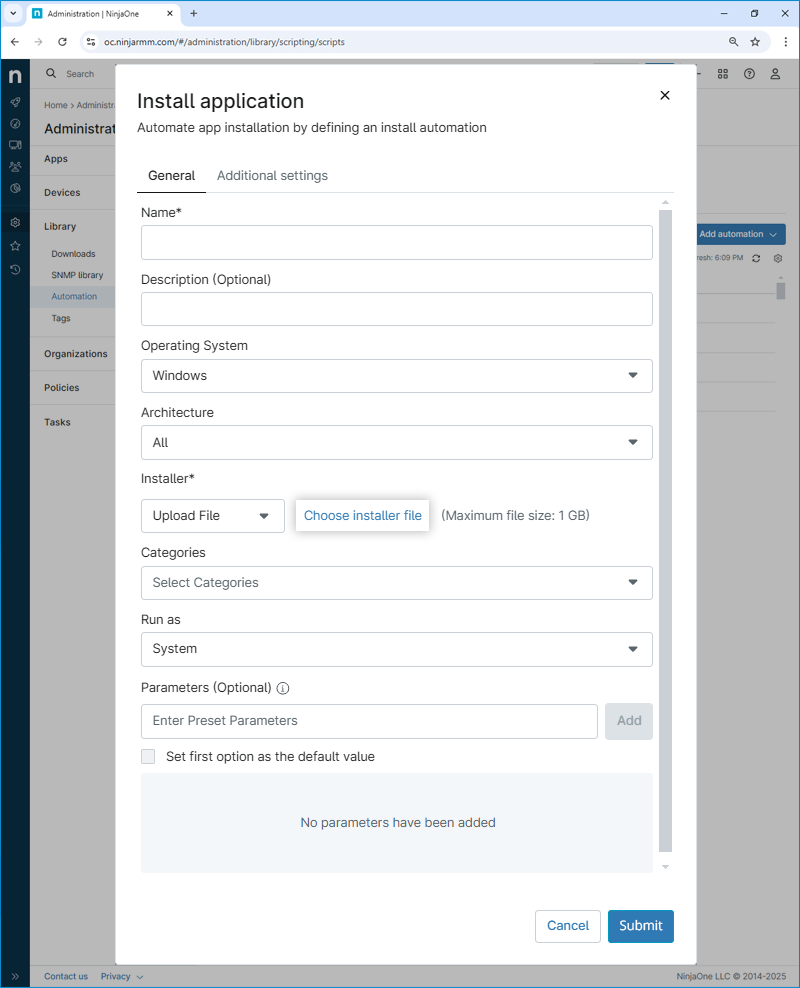
- Name: A name to identify this installation package.
- Description: A brief description of what this installation package does.
- Operating system: The operating system for which this installation package is intended.
- Architecture: Select All or choose the specific Architecture as per the requirement.
- Installer: Select Upload File from the drop-down and then Click Choose Installer file to upload the downloaded RemotePC MSI file.
- Categories: Choose the category if required.
- Run as: Choose System.
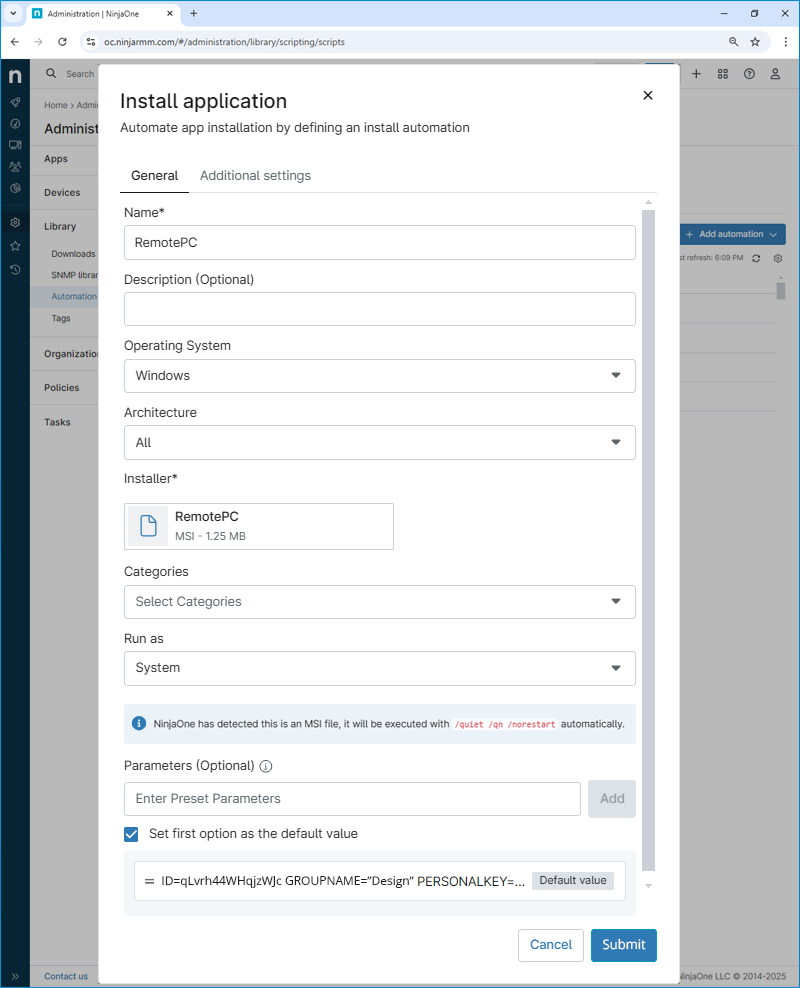
- Parameters: Enter the required parameters and then click Add. ID parameter is mandatory.
Eg:/qn ID=qLvrh44WHqjzWJc GROUPNAME=GRPOne PERSONALKEY=test1234 HIDETRAY=0 CONNECT_PERMISSION=3 REMOVE_WALLPAPER=0 DISABLE_AERO_THEME=0 DISABLE_FONT=0 DISABLE_SLEEP_MODE=0 HARDWARE_ACCELERATION=0 CONNECT_TO_ACTIVE_SESSION=0 SHOW_ACCESS_VIEWER_NAME=0 SHOW_CONFIRM=0 COMPUTERNAME=<Computer Name>
The parameters and their descriptions are shown below:
Parameters Description ID This is a mandatory parameter, and you can find it under Deploy Package > Group deployment via MSI > Configuration ID in your RemotePC account PERSONALKEY Set a 'Personal Key' for the remote computer GROUPNAME Name of the group in which the computer will be assigned * COMPUTERNAME Name of the machine assigned to the host HIDETRAY 1 Enabling this option will prevent users from accessing the tray options on their remote computers 0 Unhide the tray and allow users to access the tray options CONNECT_PERMISSION 0 Connection request permission is disabled 1 Automatically decline the connection in the login screen after the request expires 2 Automatically allow connection in the login screen after the request expires 3 Allow connection after the request expires REMOVE_WALLPAPER 1 Enabling this option will remove the wallpaper during a remote session 0 Wallpaper is displayed during the remote session DISABLE_AERO_THEME 1 Turn off the Aero theme during a remote session 0 Aero theme remains active during remote session DISABLE_FONT 1 Font smoothing is disabled during the remote session 0 Font smoothing is enabled DISABLE_SLEEP_MODE 1 Disable sleep mode when the host is configured 0 If this option is disabled, the remote computer will go to sleep mode after a specific time HARDWARE_ACCELERATION 1 Use hardware acceleration during the remote session 0 Hardware acceleration is disabled CONNECT_TO_ACTIVE_SESSION 1 Enabling this option will allow users to connect to an active session 0 Connection to an active session is disabled SHOW_ACCESS_VIEWER_NAME 1 Show a notification for who is accessing during a remote session 0 Hide notification for who is accessing during a remote session SHOW_CONFIRM 0 Do not display consent window; configure host automatically 1 (or any other value) Display consent window on host; Confirm – Machine comes online; Reject – Machine remains offline. - Fill out the required fields and click Submit.
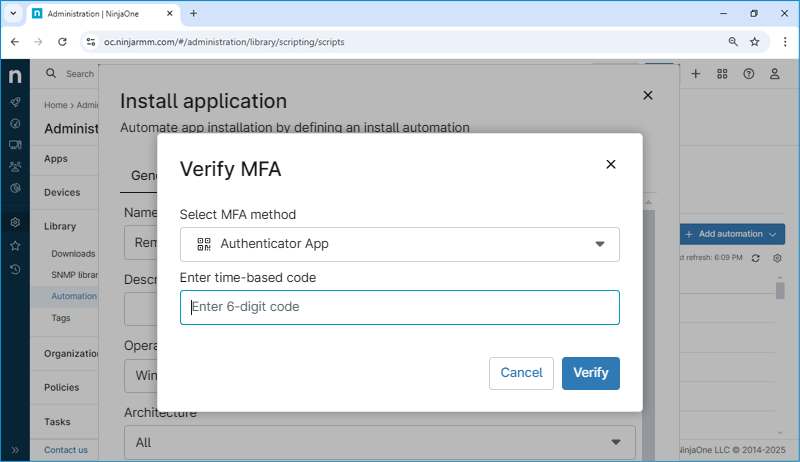
- Enter the 6-digit verification code and click Verify.
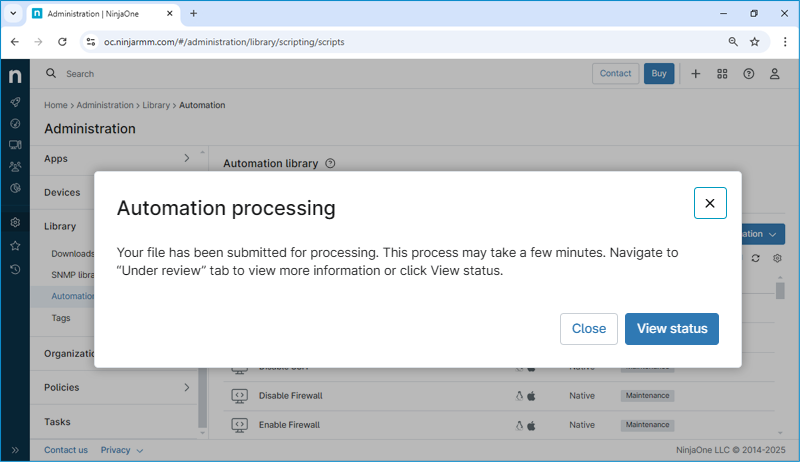
- Click Close to close the message box or click View status to check the status of the automation created.
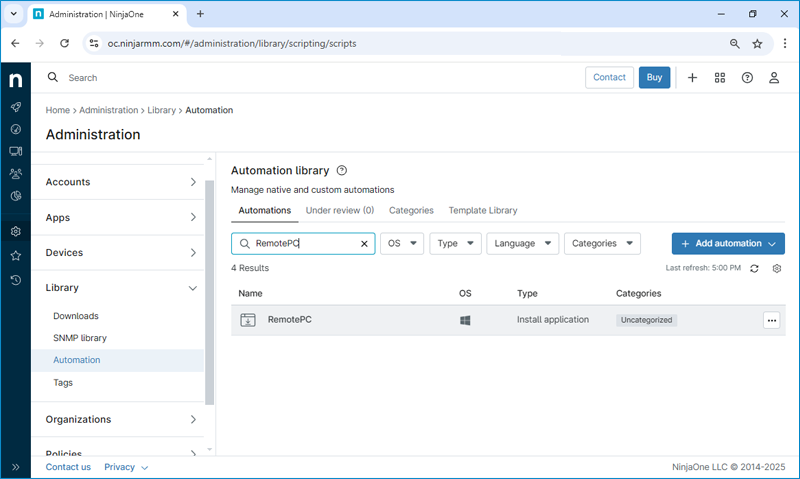
- After successful processing, the new automation will be available in the Automation Library.
Submitting the installation package on demand to one or multiple endpoints
You can submit the installation package on demand to one or multiple endpoints following the steps below.
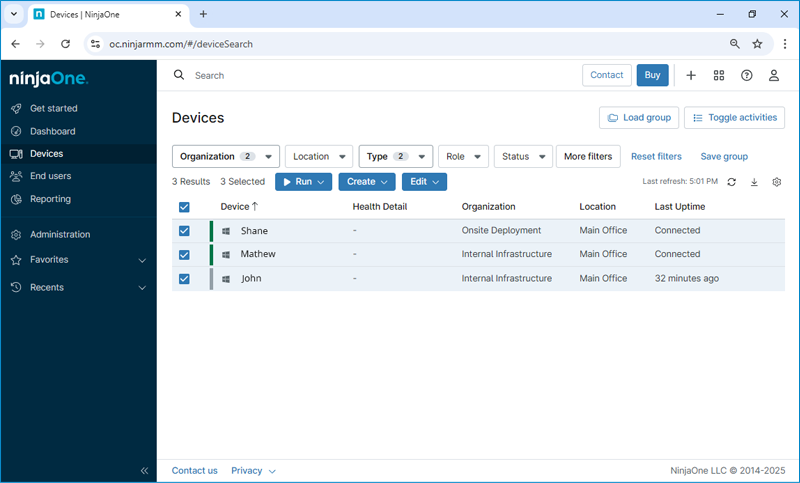
- Go to Devices and apply the necessary filters to narrow the list to only the devices targeted for the software deployment. Select the target device(s) by clicking their corresponding checkboxes.
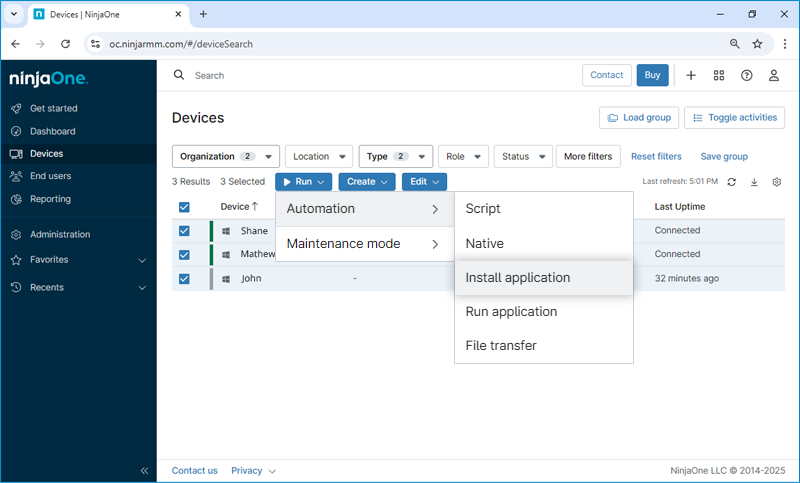
- Click Run > Automation > Install application. The Automation Library will appear.
- Locate the desired application; in this case, RemotePC.
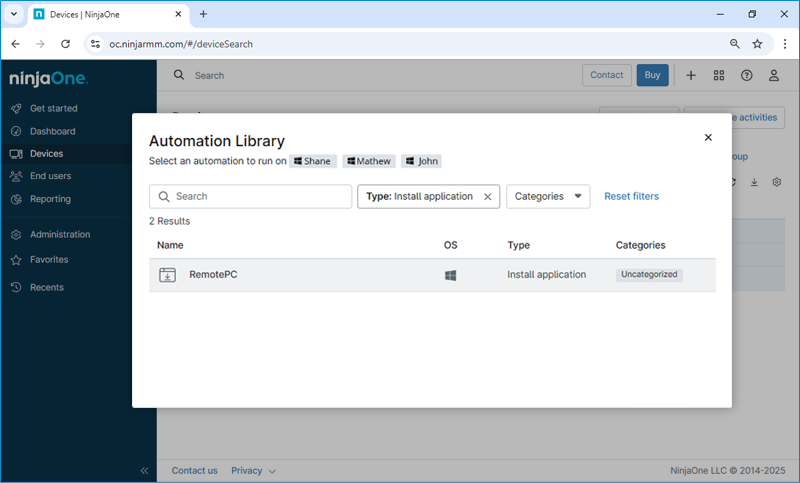
- Click on the application to install. A dialog box appears. Choose System from the Run As dropdown. Select the preset parameter from the dropdown. Click Run.
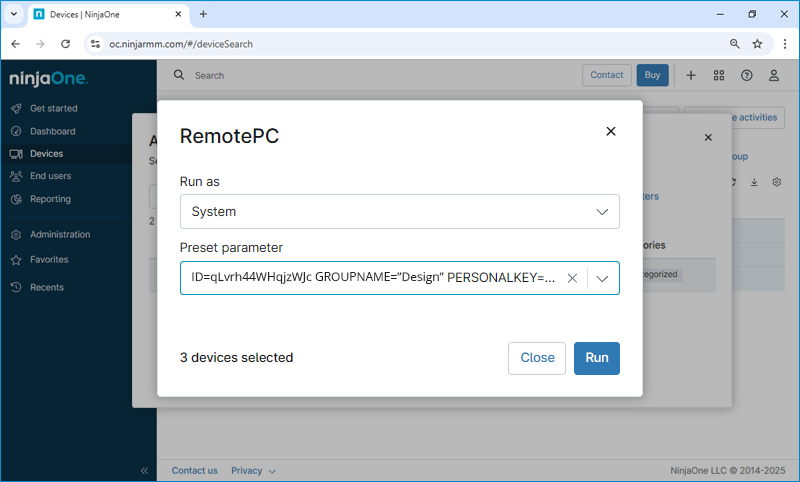
- Click Run.
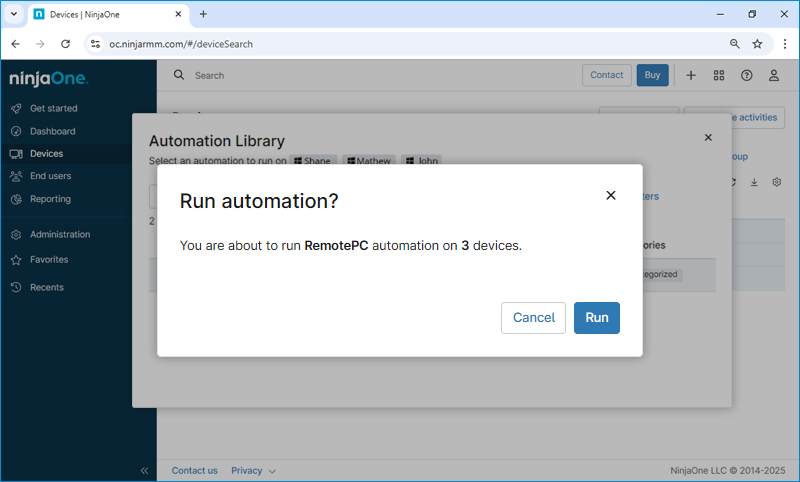
- RemotePC will be installed and listed as online on the RemotePC web console.
Note: If any endpoint is offline, the installation will be queued and applied when the device comes back online. In some cases, a system restart may be required to apply the configuration.